

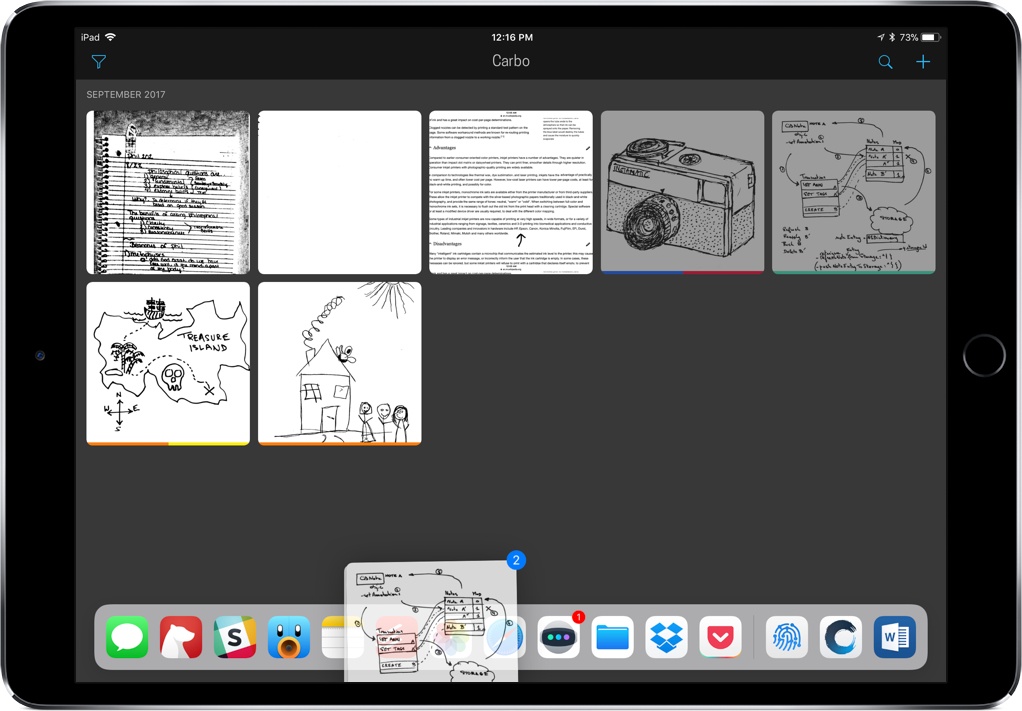
When I stumbled upon Carbo way back in January 2016, I praised it as a utility that improved my note-taking, bringing my handwritten notes into an editable, digital format. Twenty-one months later, Carbo brings its biggest update yet, aimed at making it even easier to import and export your notes through drag and drop in iOS 11.
Castro’s Latest Update Transforms Podcast Organization
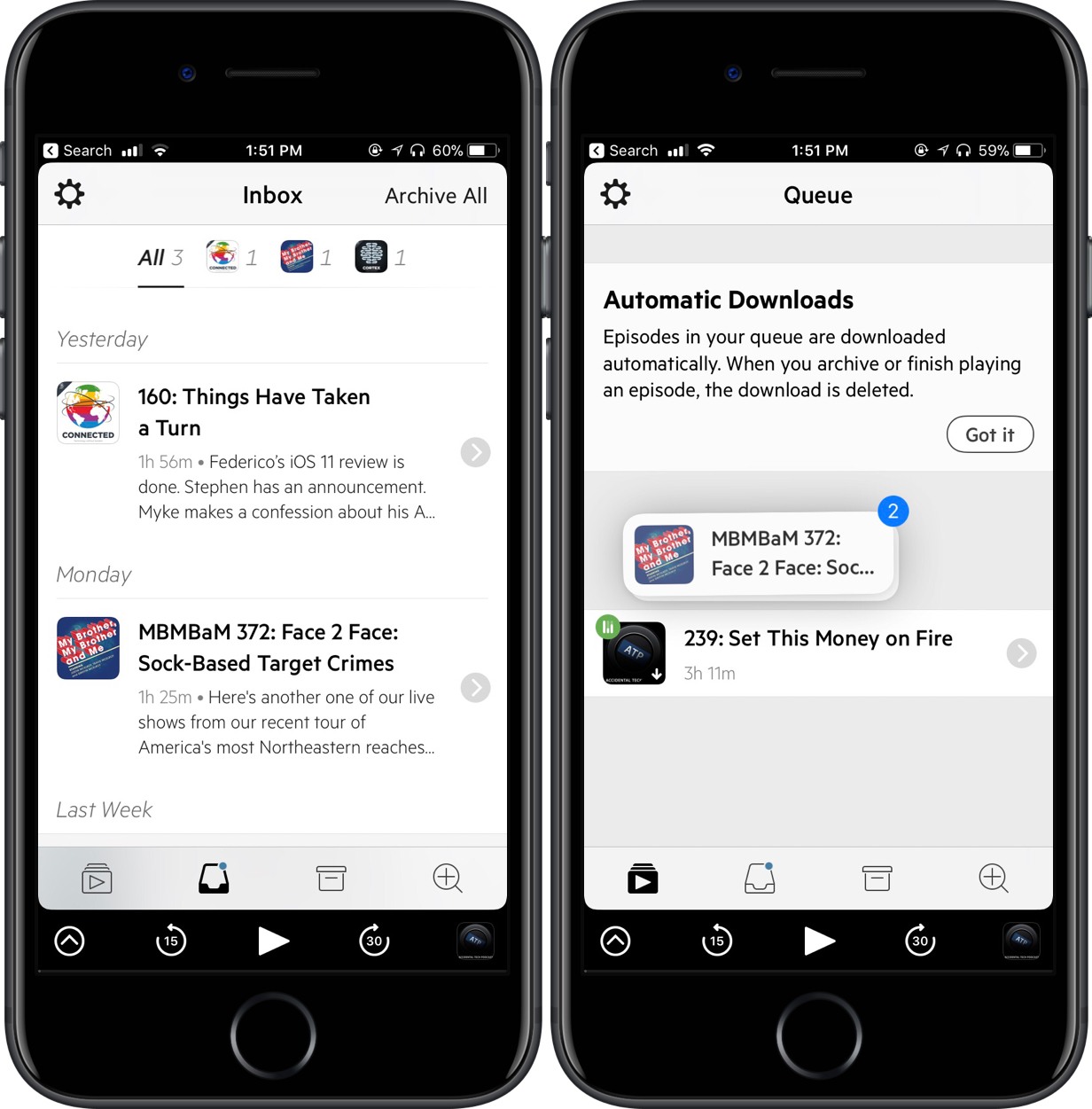
As my list of podcasts grows and my preferences change, I’m finding it tougher to organize my shows in an effective and intentional way. With Castro 2.5, though, something clicked. Through a combination of the inbox-queue methodology and drag and drop for my podcasts, I’ve been able to rethink how I listen to my feed.
For those unfamiliar with Castro, it features two locations for your podcasts to live: inbox and queue. When the latest episode of your show comes out, it’ll automatically drop into the inbox, either to be left for later or moved to queue to be played. As you might expect, moving multiple episodes over to the queue could be tedious, requiring you to transfer them one at a time; however, Castro now supports in-app drag and drop on iOS 11, making it easier to swap them back and forth.
The feature works like this: tap and hold a show so that it follows around your finger. Then, select any other podcast you’d like to move over to queue, tap on the queue icon at the bottom of the screen, and drop them onto that screen. You also can drag the episode on top of the icon, wait for it to open, and then drop it in the destination. All of this means you can grab as few or as many podcasts as you want, refining your queue to exactly what you’re looking to listen to.
Admittedly, I’ve been a devoted Overcast user for years, but this organization method in Castro has me thinking twice. Being able to move shows with drag and drop helps me filter what I’m immediately trying to listen to, an effect that can save me a lot of time. This works both ways, too, so I can save into the inbox episodes I’m not in the mood to listen to right at that moment.
If you’re a serial podcast listener like me, I’d recommend giving Castro’s 2.5 update a try. To do so, you can purchase it in the App Store for $3.99 (iPhone only) or update the app for free.
Drag and Drop, Smart Invert Colors Come to Twitter for iOS
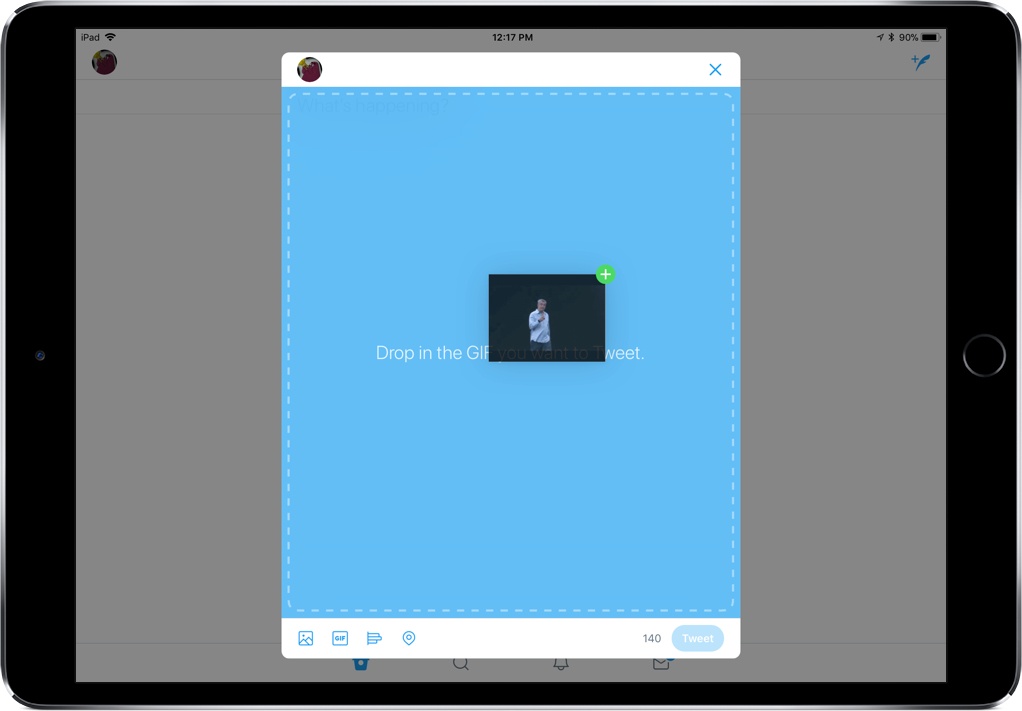
If you need another reason to believe drag and drop in iOS 11 is a big deal, here’s one: Twitter, long known for its “a few minor updates” releases, brought a day one release supporting drag and drop in the composition area. For iPad users, this means that you can drag photos, GIFs, text, and more right into Twitter when you’re composing a tweet – so instead of searching endlessly for the perfect photo in the app, you can bring it over from another source.
Additionally, Twitter’s update brought support for iOS 11’s Smart Invert Colors accessibility setting, which means you can now invert the screen’s colors while still seeing media in the intended colors. This is a pretty specific new feature to support, but it shows that Twitter cares how people view the app and is willing to make display changes to accommodate that.
When tweeting images, Twitter will also display larger preview images to help you guarantee that you’re showing exactly the right picture. And with an expandable compose area, you’ll be able to see all the content you’re planning to put into a particular tweet.
While pretty minor, the latest update to Twitter shows promise for further updates, including more support for drag and drop. In the future, I’d love to see support for dragging images to direct messages and for them to expand how I can take content out of the app.
Kpressor Fills the ZIP Archive Gap in iOS 11
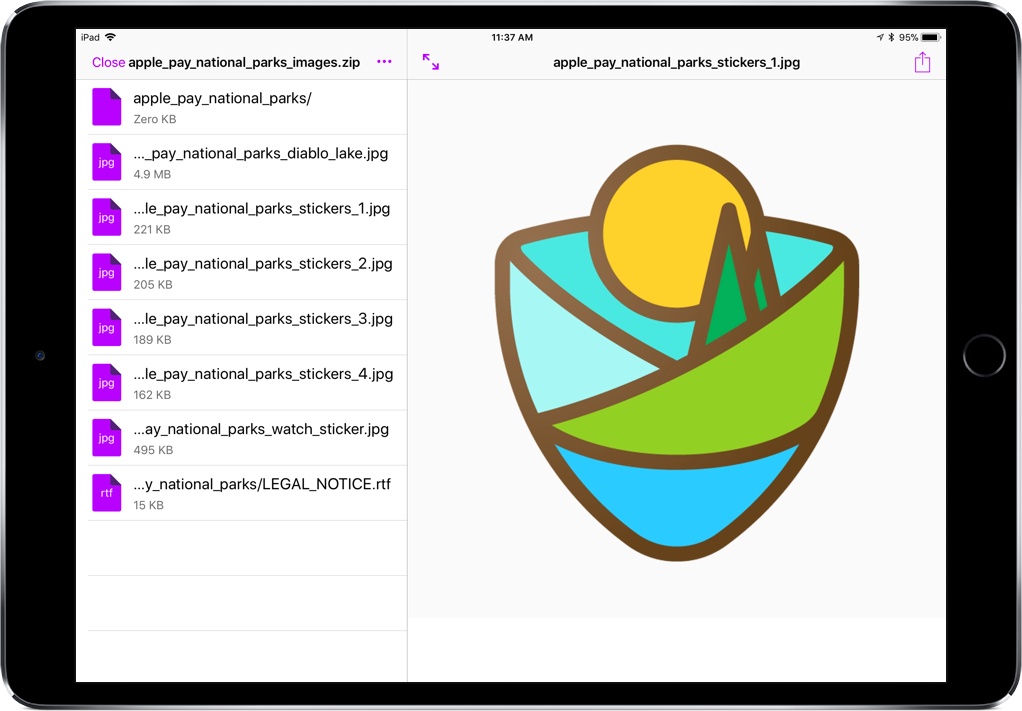
Since moving to the iPad full-time, I’ve had a couple ZIP-related moments of frustration. Whether I’ve been trying to create a ZIP archive or unzip a file, I’ve had to resort to apps with less-than-ideal support.
Kpressor is a new app that specializes in ZIP compression and decompression built for iOS 11. Through the Files app, you can work with ZIP files in the easiest way I’ve seen yet, an integration that will speed up my workflow and keep me from pulling out my hair.
Visual Codes Generates QR Codes for iOS 11’s New Camera Features
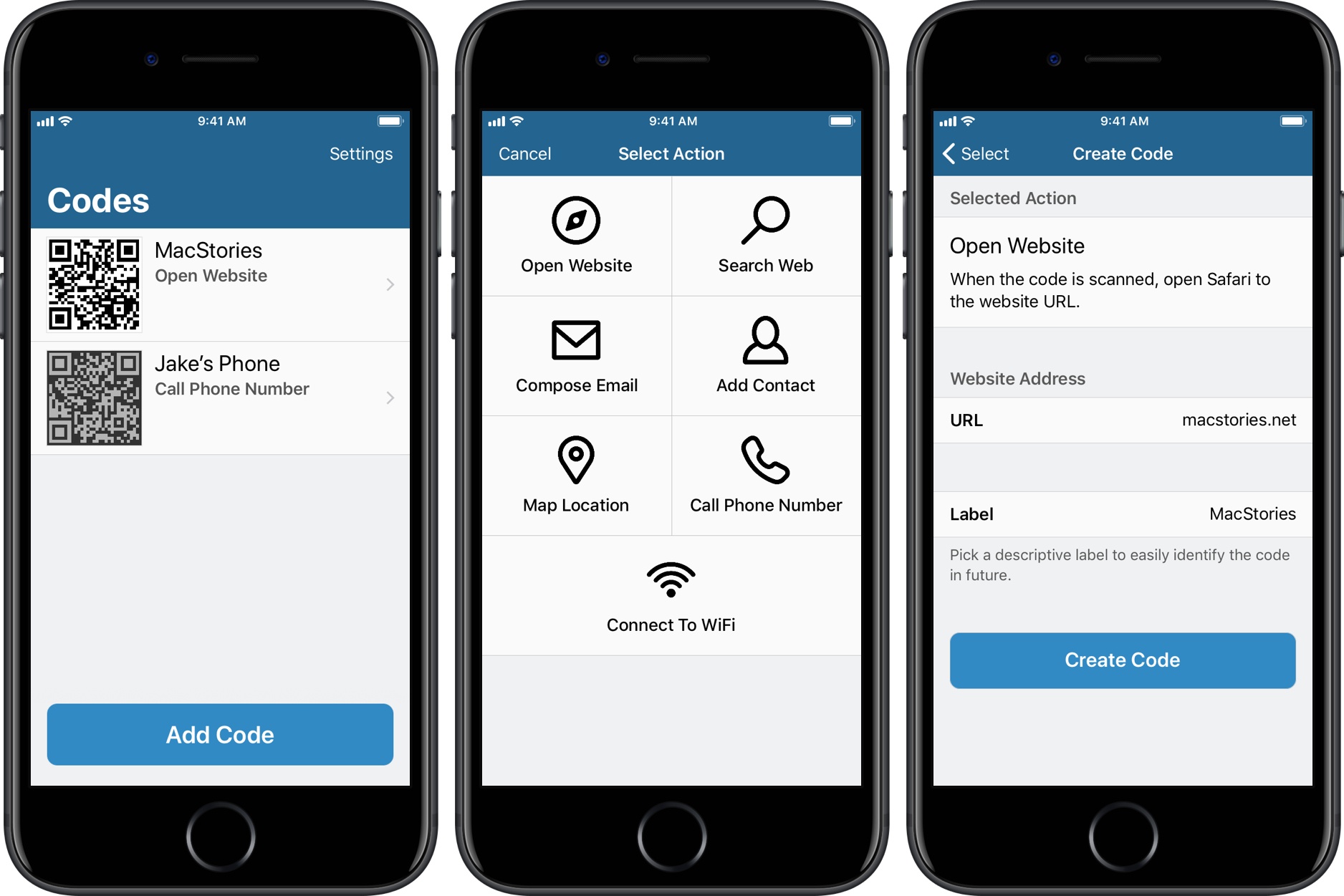
With the move to iOS 11, we’ve seen flashy releases centered around augmented reality, drag and drop, and depth mapping, showcasing what the headlining features of the new OS look like in practice. But an under-the-radar feature, QR code support in the Camera app, is shaping up to have a promising future, and Visual Codes shows us why.
Momento Brings Depth Filters to Version 4.0

Drag and Drop Streamlines Editing Images in Annotable
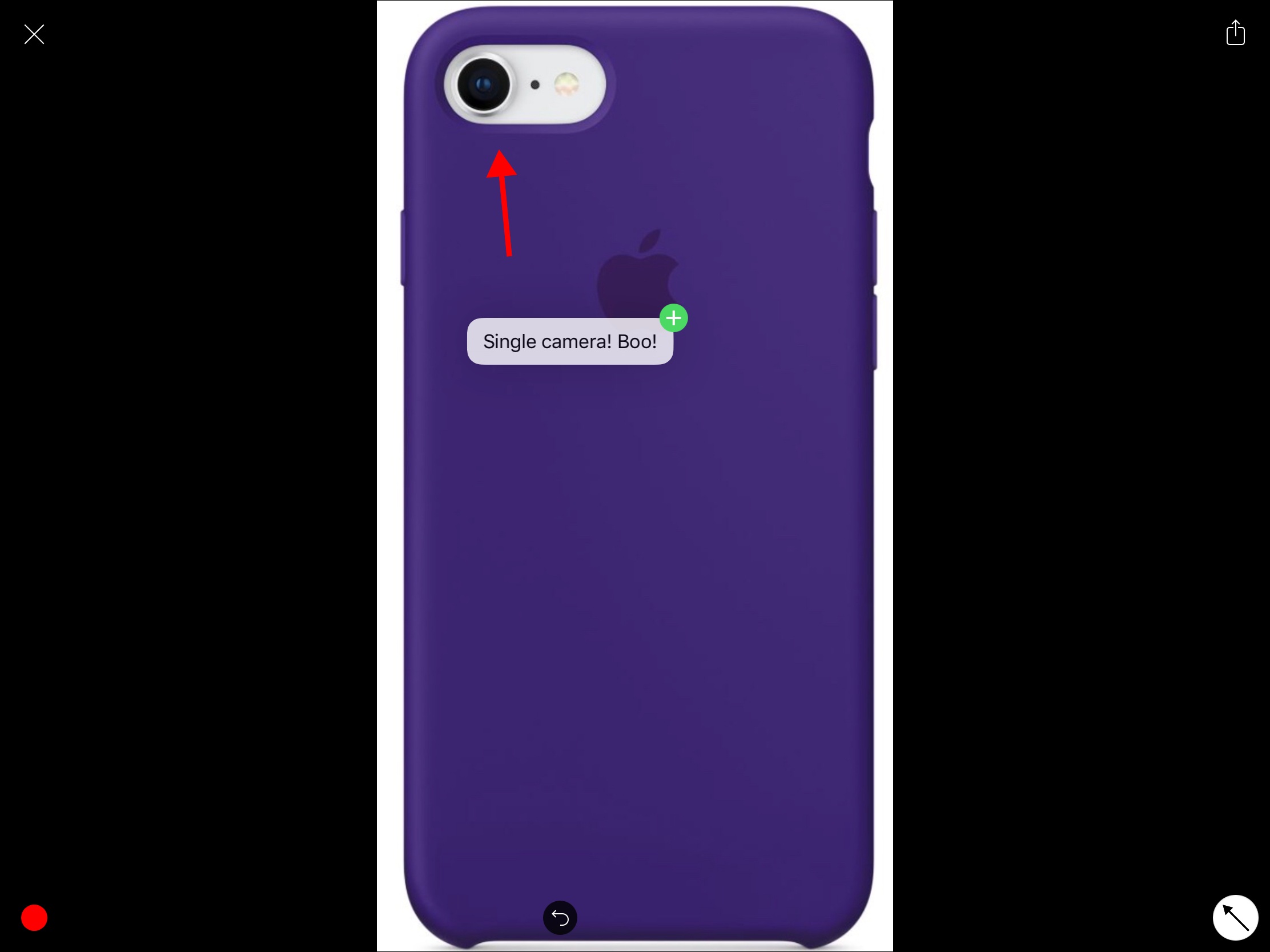
Earlier this year, John called Annotable “my hands-down favorite app for image annotations.” An all-in-one tool for marking up your images, Annotable serves as an interim stop for importing images and then exporting annotated versions to another app. With an iOS 11 update, images can now be dragged into and out of Annotable, making the annotation process simpler than ever before.
Let’s say you’re browsing the web on your iPad and you find an image online that you want to share with a friend, but you need to point out a detail. In Safari, you press and hold on the picture to pick it up, open Annotable, and drop it into the app when the green plus sign appears in the bottom right corner. The image will open in Annotable’s editor where you can apply any of the tools the app offers. You can even drag and drop text from another app onto an image in Annotable as an annotation. When you’re finished, tap save, and the image will be added to your camera roll, or drag the image into another app.
When you want to export photos, you can grab multiple from Annotable’s photo viewer and drag them to your app of choice. Of course, you could also head over to Photos to accomplish this, but I’ve found it convenient just to stay in the same app when I’m finished annotating my images.
Overall, the implementation of drag and drop into Annotable saves multiple steps, creating a more seamless way to get images into and out of this MacStories favorite.
Annotable is available on the App Store.
 Bear
Bear
There’s a small list of apps I feel I couldn’t live without, ranging from entertainment to messaging and utilities. The app that tops this list is Bear, my go-to for note-taking, review-writing, and so much more. It’s the app I’ve put the most words into, holding hundreds of notes spanning tens of thousands of...
Quickly Accessing Contexual Menus in iOS 11
 Ryan
RyanWith iOS 11 launching publicly next Tuesday, I wanted to share a tip regarding something I wish I’d known back in June when I first got on the beta. On the iPad, the advent of drag and drop has made accessing contextual menus – such as the one that appears when long-pressing a link...