
Posts tagged with "utilities"

Picmal Streamlines Batch Conversion and Compression on the Mac

One of my favorite aspects of macOS is the endless supply of great utilities for doing anything you can imagine. If there’s something you want to do on your Mac, the chances are that there isn’t just one good utility to accomplish your task; there are several.

My latest discovery is a file conversion and compression app called Picmal. The app has a wonderfully simple, modern interface that sits on top of a lot of complexity, enabling batch conversion and compression with minimal effort.
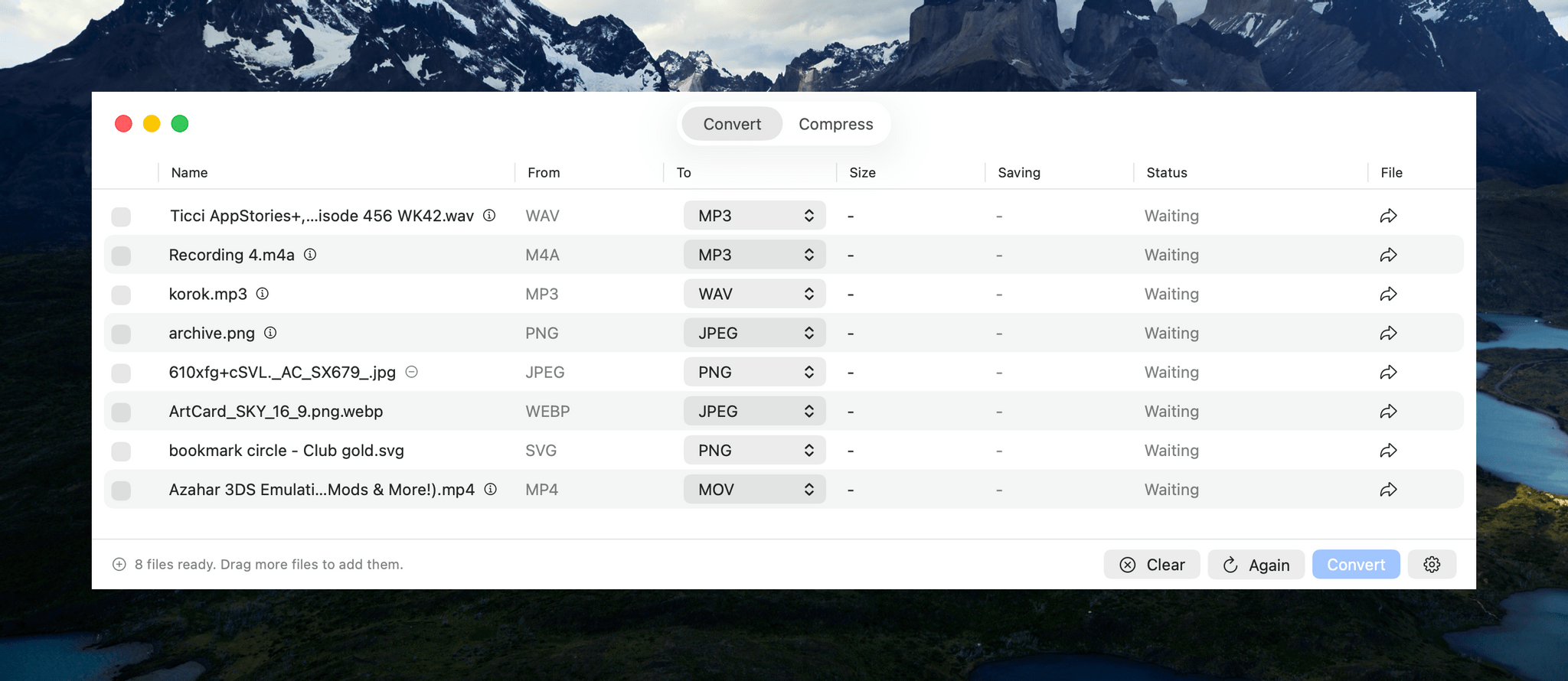
You can mix and match file types in one conversion or compression operation.

You can mix and match file types in one conversion or compression operation.

Picmal handles images, videos, and audio files in a single-window utility that features a Convert/Compress toggle at the top and a lot of empty space to start. The center of the window invites users to “Drop Your Files Here.” Once you do, the window animates into something a little closer to a Finder window with alternating white and light gray rows that make it simple to track metadata about each file.

Files can be dragged into Picmal from anywhere on your Mac, allowing for batch processing without moving your files to one location first, which I appreciate. Once converted, files are saved as new files in the folder they came from with a prefix or suffix that you can specify in the app’s Settings. You’re not limited by file type either. You can drag any combination of images, videos, and audio files into Picmal’s window, picking and choosing what to convert them into as you go.
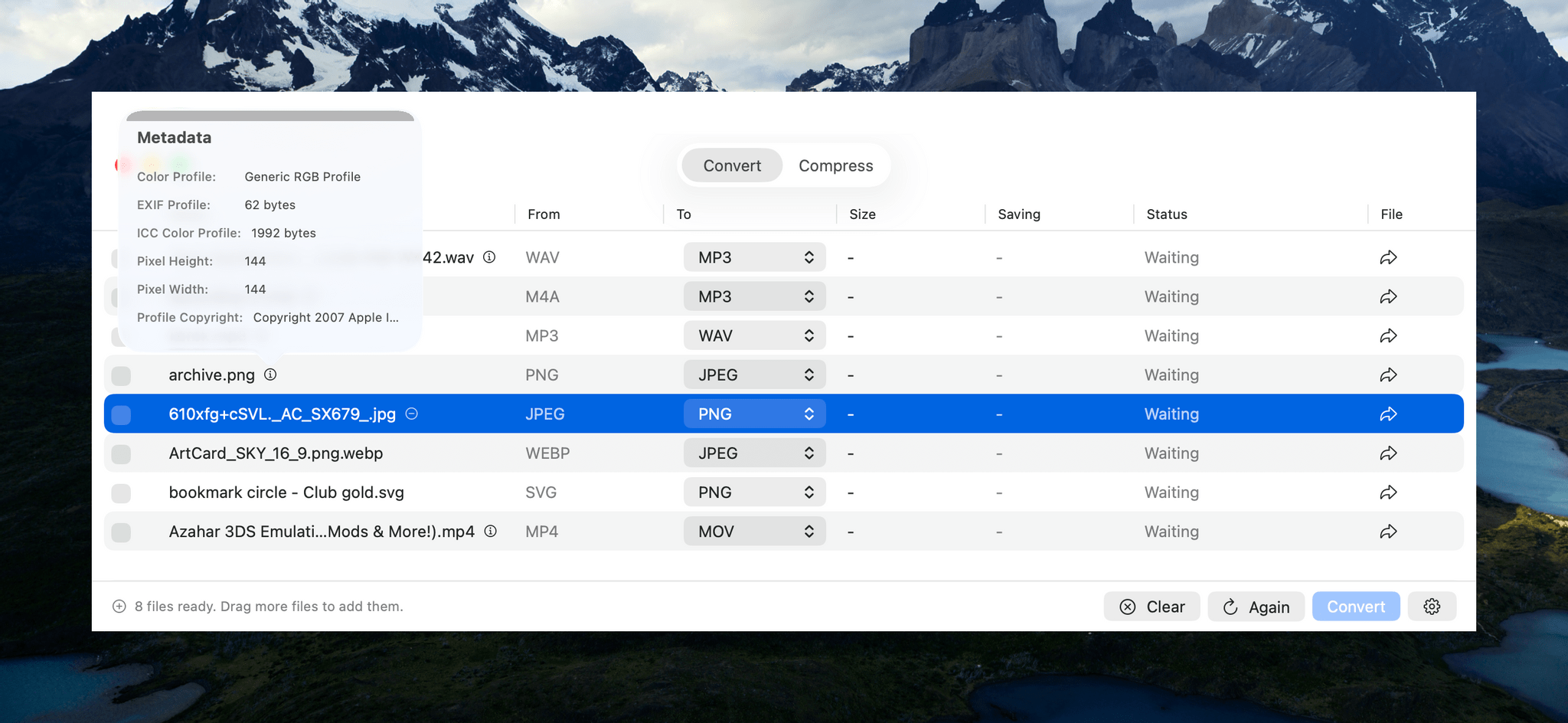
For some file types, Picmal includes metadata.

For some file types, Picmal includes metadata.

Next to some file types is a small info button that reports the sort of basic file metadata you find in the Finder’s info panel. That’s followed by a column that lists the file’s starting type, and a column with a dropdown menu for picking the destination file type. The list of supported file types is long, too, with the exact number of options dependent on the type you begin with.

If you want to check the file you’re about to convert before doing so, there’s also an arrow button on the far right of each file’s row that will take you to it in the Finder. The other columns report the output file’s size, any compression savings, and the status of each conversion. Whenever you want, you can add more files for conversion, kicking off a new batch once any ongoing conversions complete.
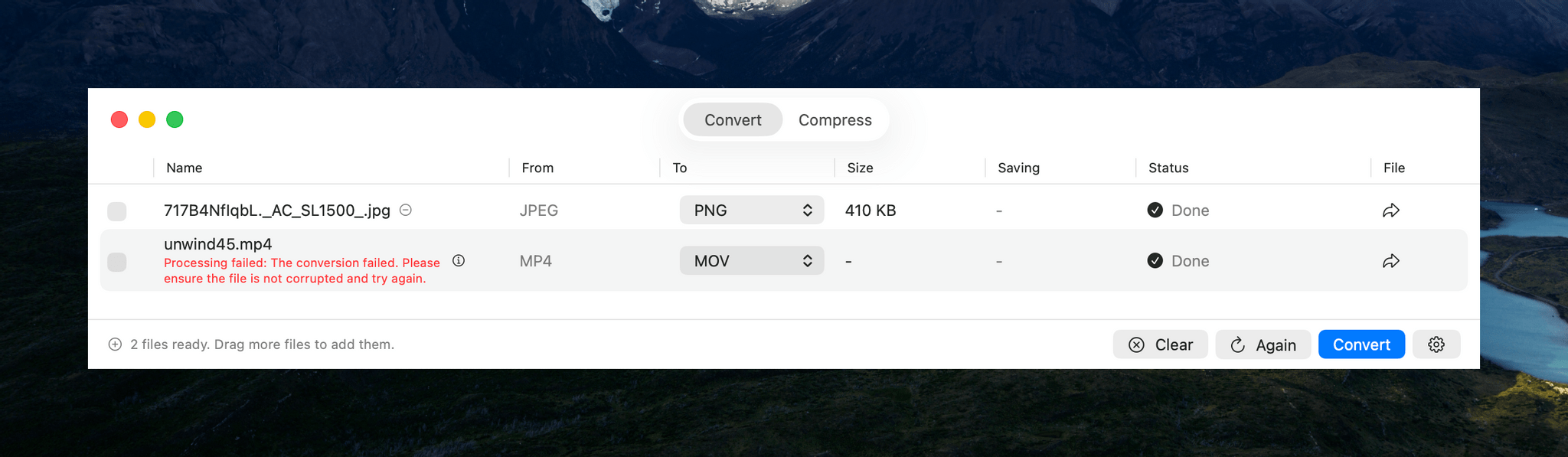
Most file conversions I tried went well, but I couldn't manage to convert large MP4s to the MOV format.

Most file conversions I tried went well, but I couldn’t manage to convert large MP4s to the MOV format.

In my testing, Picmal performed well overall. I converted images, audio, and videos to and from a variety of common formats such as PNG, JPEG, PDF, MP3, AAC, WAV, MP4, and MOV. However, I did run into trouble trying to convert a 1.55 GB MP4 of an episode of MacStories Unwind from MP4 to MOV. The conversion failed, even though much smaller files worked. Hopefully this is something that can be fixed in an upcoming update.

Another smaller issue I ran into is that there’s a checkbox next to each file in the Picmal file conversion interface that appears to be intended as a way to change the conversion file type for multiple files at once. However, the dropdown that appears when selecting multiple files of the same type didn’t give me an option to pick a new conversion type. The developer is aware of this and the large video file issue and is working to resolve both.

The other primary use for Picmal is file compression. The workflow is largely the same as converting files, with the size savings reported in a dedicated window column. By default, compressing files requires you to click on Picmal’s Compress button, but you can change the process so that it happens automatically instead. From Settings, you can also add compression to your file conversions, completing both steps together.
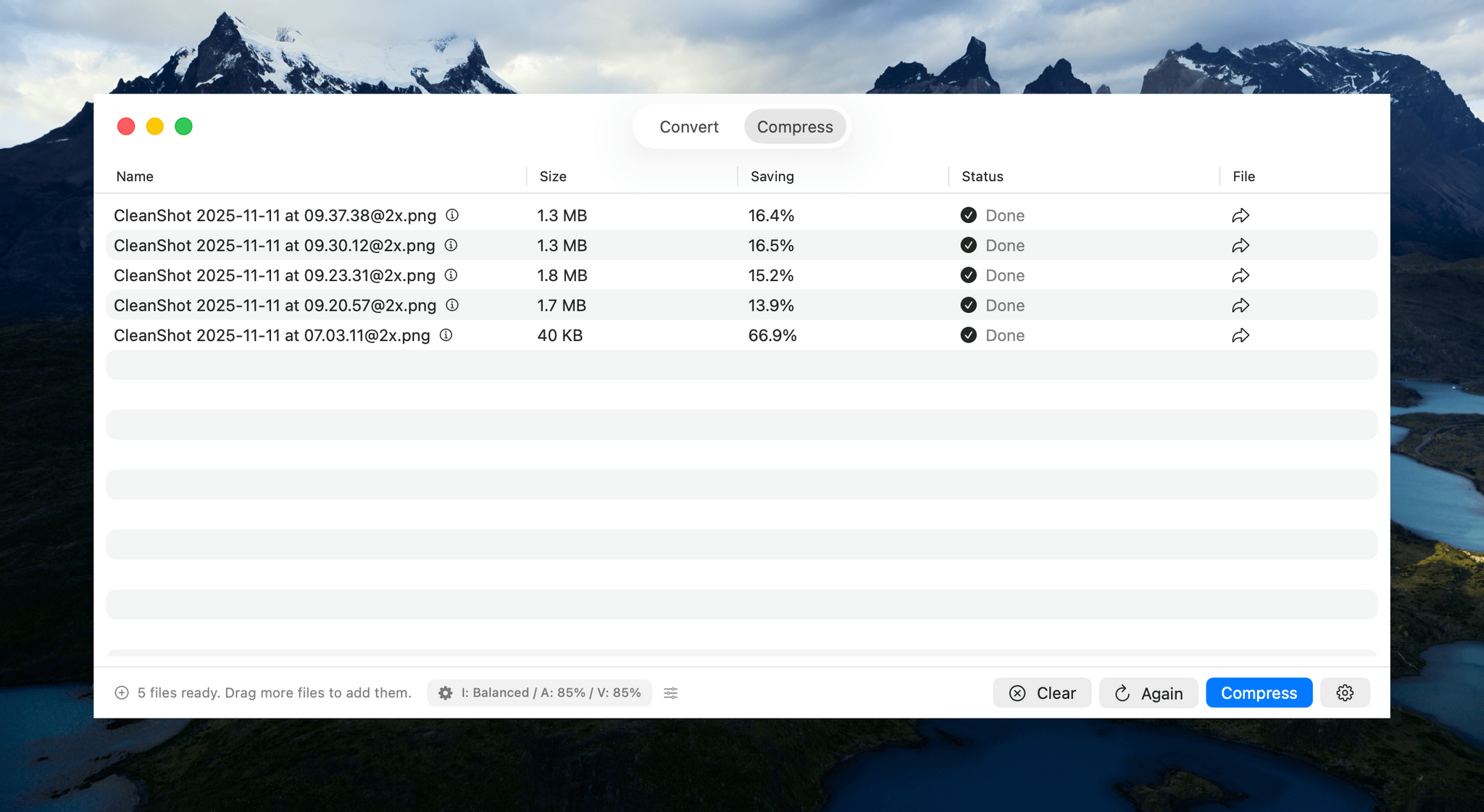
Compressing images.

Compressing images.

Audio and video compression quality are set to 85% by default, while image compression quality is set to ‘balanced.’ However, in each case, you can tweak the compression settings with more fine-grained controls. Another nice touch is that your compression selections and a link to Picmal’s Settings are both accessible from the bottom of the Picmal window, making your compression choices clear and simplifying the process of making any adjustments.


Aside from a couple of hiccups in my testing that the developer will likely have fixed soon, my experience with Picmal has been great. About the only thing I’d love to see added is support for Shortcuts. Otherwise, Picmal is an excellent way to manage file conversion and compression jobs of any size. There are other apps that accomplish something similar, but the simplicity and speed with which you can manage batch conversion and compression with Picmal sets it apart and makes it worth checking out.

Picmal is available directly from its developer for $9.99. That gets you the use of the app on one Mac at a time, which can be expanded to more Macs at an increasing per-Mac discount based on the number of licenses you purchase.

Hands-On: How Apple’s New Speech APIs Outpace Whisper for Lightning-Fast Transcription

Late last Tuesday night, after watching F1: The Movie at the Steve Jobs Theater, I was driving back from dropping Federico off at his hotel when I got a text:

Can you pick me up?

It was from my son Finn, who had spent the evening nearby and was stalking me in Find My. Of course, I swung by and picked him up, and we headed back to our hotel in Cupertino.

On the way, Finn filled me in on a new class in Apple’s Speech framework called SpeechAnalyzer and its SpeechTranscriber module. Both the class and module are part of Apple’s OS betas that were released to developers last week at WWDC. My ears perked up immediately when he told me that he’d tested SpeechAnalyzer and SpeechTranscriber and was impressed with how fast and accurate they were.

It’s still early days for these technologies, but I’m here to tell you that their speed alone is a game changer for anyone who uses voice transcription to create text from lectures, podcasts, YouTube videos, and more. That’s something I do multiple times every week for AppStories, NPC, and Unwind, generating transcripts that I upload to YouTube because the site’s built-in transcription isn’t very good.

What’s frustrated me with other tools is how slow they are. Most are built on Whisper, OpenAI’s open source speech-to-text model, which was released in 2022. It’s cheap at under a penny per one million tokens, but isn’t fast, which is frustrating when you’re in the final steps of a YouTube workflow.

An SRT file generated by Yap.

An SRT file generated by Yap.

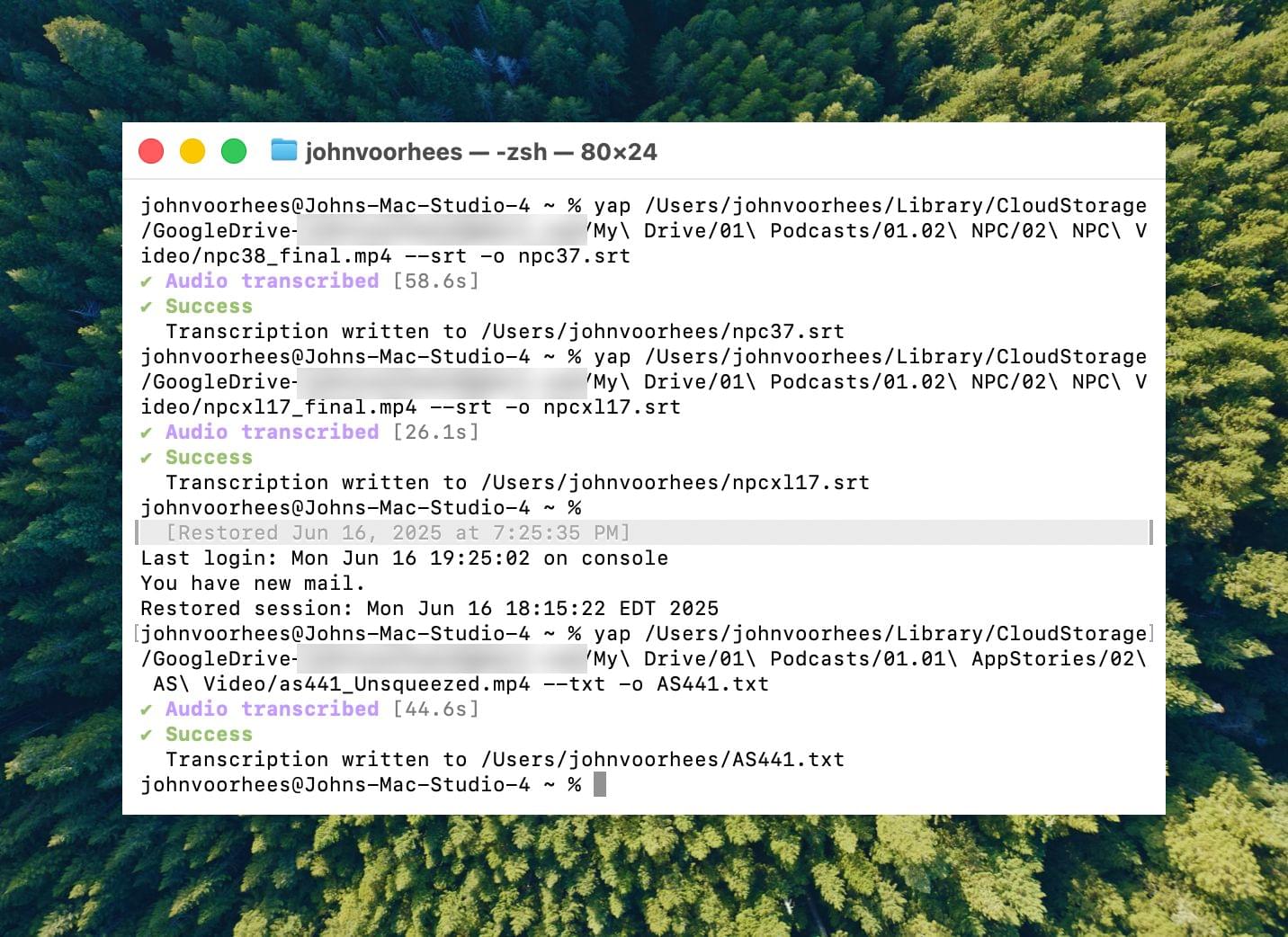
I asked Finn what it would take to build a command line tool to transcribe video and audio files with SpeechAnalyzer and SpeechTranscriber. He figured it would only take about 10 minutes, and he wasn’t far off. In the end, it took me longer to get around to installing macOS Tahoe after WWDC than it took Finn to build Yap, a simple command line utility that takes audio and video files as input and outputs SRT- and TXT-formatted transcripts.

Yesterday, I finally took the Tahoe plunge and immediately installed Yap. I grabbed the 7GB 4K video version of AppStories episode 441, which is about 34 minutes long, and ran it through Yap. It took just 45 seconds to generate an SRT file. Here’s Yap ripping through nearly 20% of an episode of NPC in 10 seconds:

Replay

Next, I ran the same file through VidCap and MacWhisper, using its V2 Large and V3 Turbo models. Here’s how each app and model did:

App Transcripiton Time
Yap 0:45
MacWhisper (Large V3 Turbo) 1:41
VidCap 1:55
MacWhisper (Large V2) 3:55

All three transcription workflows had similar trouble with last names and words like “AppStories,” which LLMs tend to separate into two words instead of camel casing. That’s easily fixed by running a set of find and replace rules, although I’d love to feed those corrections back into the model itself for future transcriptions.

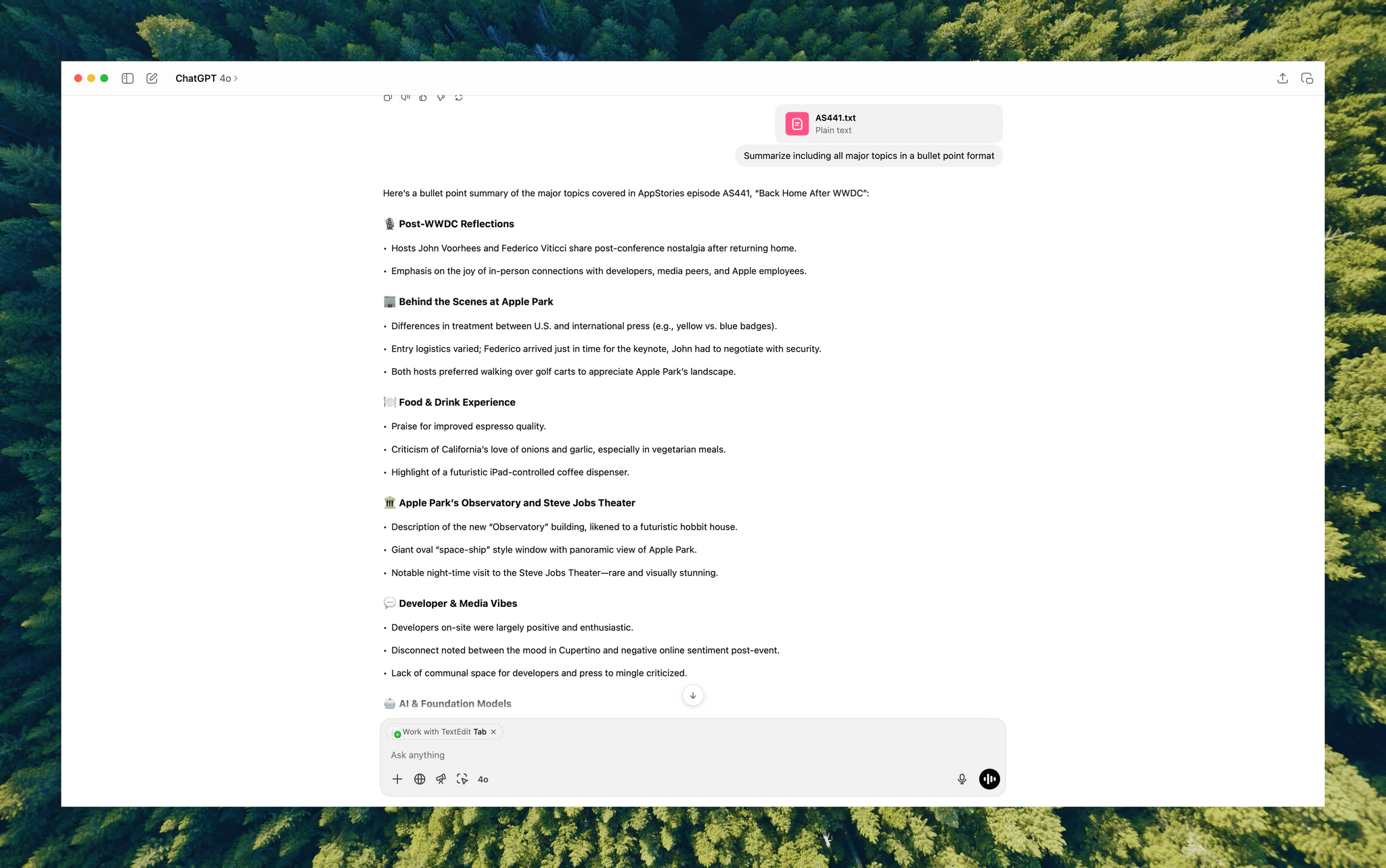
Once transcribed, a video can be used to generate additional formats like outlines.

Once transcribed, a video can be used to generate additional formats like outlines.

What stood out above all else was Yap’s speed. By harnessing SpeechAnalyzer and SpeechTranscriber on-device, the command line tool tore through the 7GB video file a full 2.2× faster than MacWhisper’s Large V3 Turbo model, with no noticeable difference in transcription quality.

At first blush, the difference between 0:45 and 1:41 may seem insignificant, and it arguably is, but those are the results for just one 34-minute video. Extrapolate that to running Yap against the hours of Apple Developer videos released on YouTube with the help of yt-dlp, and suddenly, you’re talking about a significant amount of time. Like all automation, picking up a 2.2× speed gain one video or audio clip at a time, multiple times each week, adds up quickly.

Whether you’re producing video for YouTube and need subtitles, generating transcripts to summarize lectures at school, or doing something else, SpeechAnalyzer and SpeechTranscriber – available across the iPhone, iPad, Mac, and Vision Pro – mark a significant leap forward in transcription speed without compromising on quality. I fully expect this combination to replace Whisper as the default transcription model for transcription apps on Apple platforms.

To test Apple’s new model, install the macOS Tahoe beta, which currently requires an Apple developer account, and then install Yap from its GitHub page.