Drip Makes Sharing Large Files Simpler

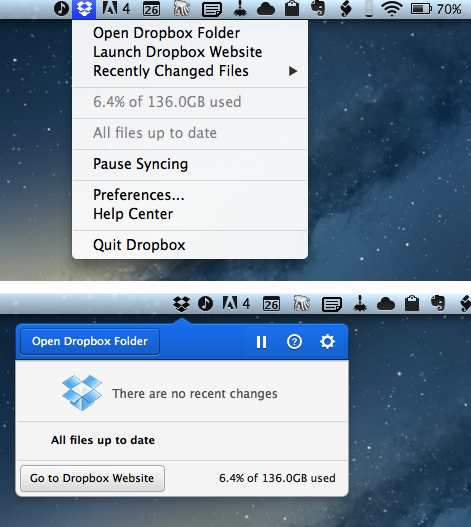
I recently discovered Drip, a new small menubar filesharing app developed by Scott Savarie (@ScottSavarie) and Florian Denis (@Olotiar), released last month. After I got to take a look at it, I think I maybe know where the drop-down menu redesign in the latest Dropbox beta introduced yesterday got partly inspired by. Drip is a small, really useful tool for sharing large files quick and completely without hassle.

Drip uses the servers of hosting service sendspace to store files. Sendspace offers a completely free data plan (called sendspace Lite) with which users can upload files sized up to 300 MB which are available for download for 30 days starting from the time of the newest download; after this period of time they get deleted. The free plan is ad-powered, so you need to click through some ads if you download a file from the sendspace website. But this is the only disadvantage: as far as I know from the sendspace FAQs, there ist no upload limit in total for free users. Perfect for quick, temporary file sharing of smaller, but also suited for quite large files. If you want to upload even larger files and store them for a longer time on sendspace, you can sign up for a Pro or Premium account which support larger file sizes and higher download bandwidth (see detailed plan information here).

Drip is your desktop companion for Mac if you use sendspace. Download it for free from the app website, install and launch, and you can immediately start uploading files. There is no signup needed, new users automatically are connected to a free sendspace account without having to login. If you want to be more flexible with using the free account (maybe you want to use the web upload interface) or if you are a Pro/Premium user, you can enter your login data for sendspace in app’s preferences (I’ll come to them in detail in a bit).

Uploading files works just like you would expect it: drag the file you want to upload for sharing onto the menubar icon, drop it, and it gets uploaded. If the upload is finished, the related sendspace.com download link is automatically copied to you clipboard for sharing.
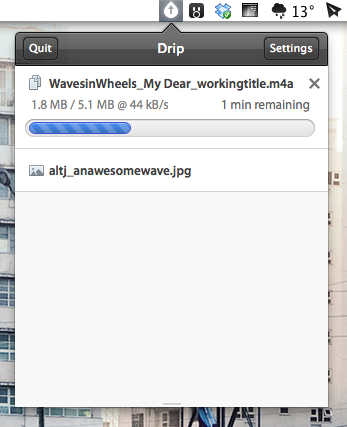
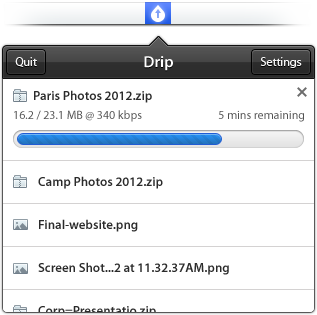
If you drop a file onto Drip’s menubar icon or if you click on it, a really great-looking drop-down menu appears listing the last uploaded files. You can change its height to view more elements without scrolling using a small draggable element at the very bottom of the list — I state this feature, since the dragging indicator is designed a bit too small in my opinion and is hard to aim at. You can click on any file in the list to copy its download URL again. Using the preference icon which always appear when you hover over a file list element you can do even more actions. The drop-down menu which appears when you click on it (my personal UI highlight of Drip) offers you to delete the upload, remove the file from the list to keep Drip uncluttered, automatically share the file download link with your default email client, or re-upload the file if you need a new link for any reason.
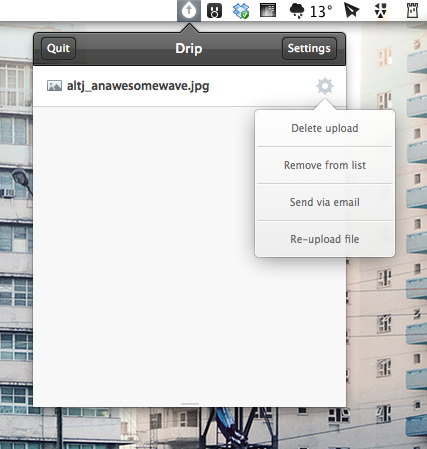
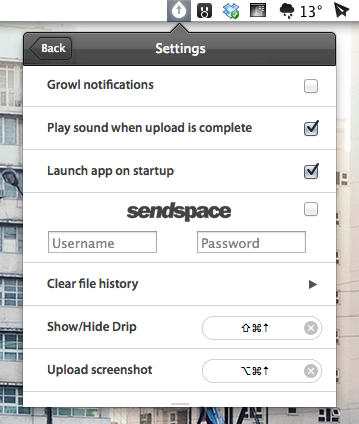
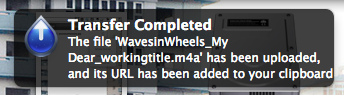
As you can see, Drip is very versatile, but still drop-dead simple to use. It also features extensive settings to make it work just like you want it to. You can bring them up by clicking the settings button in the top right corner of the main drop-down menu. Apart from the aforementioned sendspace account login panel, you can also activate Growl notifications (see example below), set up upload completion sound, clear the whole file list, or let the operating system start Drip at launch. However, the best option available in the settings are the shortcuts. Besides the standard one to bring up the app window, you can also set a custom shortcut for uploading the last screenshot you took, a truly great feature for quick thought sharing or reporting bug fixes.
After I researched a bit about the current free data plans of sendspace, I decided to make Drip my default app for quick, temporary file sharing. I had accounts for Droplr and Cloudapp in the past, as well as a free Dropbox account. But non of those services supports large file uploads (or they didn’t work like with Cloudapp), or in case of Dropbox I had to intricately delete unused files to free space for new ones. With Drip, all this hassle is gone (at least for now). It’s not just a new app supporting another web hosting service in the game, version 1 is already a serious competitor for apps like Droplr and iCloud. I can’t wait to see if they manage to develop a fitting iOS client of it as well to have all the uploaded files and links available on the road. Currently, Drip is Mac-only. But if the app gets as popular as I think it will, this will surely change soon.

You can download Drip for free on the app’s website. 


Bad Piggies Is Now Available For Download On iPhone, iPad and Mac

Bad Piggies, the latest game from Rovio, is now available for download on iPhone, iPad, Android and Mac. This latest Rovio game is a twist on the infamous Angry Birds series in which you now control the pigs and must pilot them safely to the bird eggs. Unlike the simple mechanic featured in Angry Birds in which you simply slingshot the birds into the pigs and their structures, Bad Piggies requires you to make “the ultimate flying machine” and steer them through the levels.

With more than 60 levels, and free updates coming up, you have hours and hours of pig-crashing, exploding, and flying fun! Get three stars on every level to unlock 30 more puzzles! HINT: Sometimes you need to play the level several times to achieve all the objectives – try building a new device or steering in a different way to earn all the stars!

The game currently features 60 levels, with another 30 unlockable by getting three-stars on levels and will, like Angry Birds, receive free updates that add levels. There’s also 4 sandbox levels in which you can really have fun with making some awesome flying contraptions with various fans, wings, motors, balloons and other objects. If you’re interested in reading a review, check out this one by Polygon’s Chris Plante:

Bad Piggies’ levels aren’t nearly as fast as Angry Birds. They require attention and patience as the pig slowly travels from one end to the other. Unlike Angry Birds, it’s not as easy to play on a subway or during a coffee break. The main game is a fine distraction, something to do with your hands while watching sitcoms or talking on the phone.

Download links:

Jump the break to watch the Bad Piggies trailer.

Read more


OmniOutliner, Plain Text, and Nebulous Notes

OmniOutliner, Plain Text, and Nebulous Notes

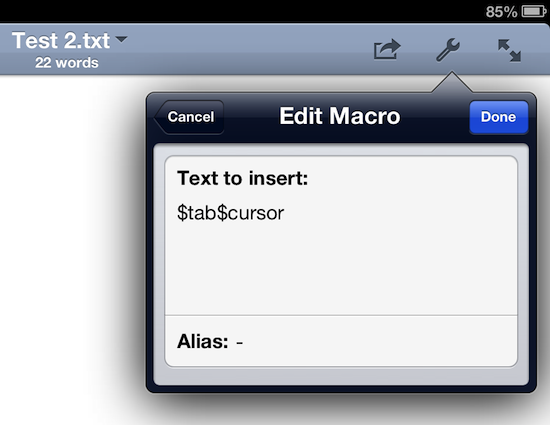
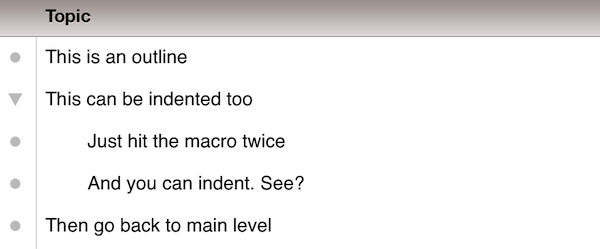
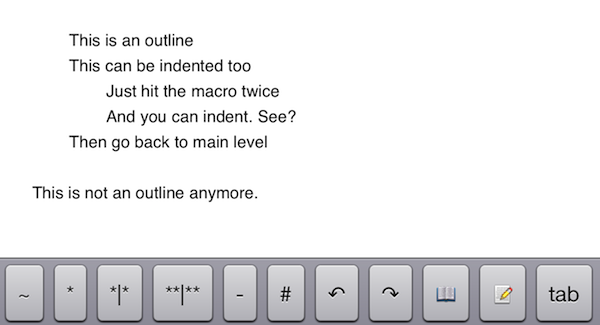
A few months ago, I asked if there was a way to produce plain text-based outlines and import them into OmniOutliner for iPad while preserving indentation. Today, Jeff Hunsberger has posted a nice overview of his setup, which doesn’t include OmniOutliner but relies upon the same “trick” I use – speeding up plain text outlining using Nebulous Notes’ macro functionality.

Just by setting up those few macros, I have create a fully-realized meeting outline tool in markdown using Nebulous Notes. The outline in the same format I’ve been using for years and is searchable, extensible and ubiquitous thanks to Dropbox. The beauty of this is, after the meeting is over, the notes I’ve just taken are ready back at my desk – they can be inserted into an email to the team with a simple copy/paste.

My workflow is only slightly different. Firstly, I usually outline in CarbonFin Outliner on the iPad (Tree on the Mac), but sometimes good ideas strike when I’m already in my text editor, thus requiring me to write them down as quickly as possible. What I end up with is a rough structure of my thoughts that I want to further refine in OmniOutliner. From there, I’ll then export as OPML to CarbonFin Outliner. It sounds convoluted – maybe it is – but this setup works for me. This is how I built the outlines for my Mountain Lion and iOS 6 reviews, and I’m always looking for improvements.

As I discovered, OmniOutliner for iPad wants to receive tab-delimited plain text. So, unlike Jeff’s, my macro doesn’t have hyphens, just a tab that I can hit as many times as I need to indent text into lines and children. Unfortunately, it doesn’t seem like tab-delimited plain text can handle notes, but that’s something I do in OmniOutliner or CarbonFin Outliner anyway.

I would love to see proper documentation for plain text import in OmniOutliner; for instance, while OmniOutliner can export to plain text, if you try to re-import what you exported (I know, I like to reverse-engineer plain text), OmniOutliner will lose indentation. Similarly, I’d like to see import/export options in CarbonFin Outliner, which is still lacking from this standpoint. As for Nebulous Notes, the latest 6.0 version lets you chain macros, which makes the app even better.

Check out Jeff’s plain text workflow for outlines here.

Permalink

Better Dropbox Camera Uploads with CameraSync

Two weeks ago I wrote about my new Dropbox-based workflow for photos. Towards the end of the article, I mentioned how I was handling uploads from my iPhone:

The official Dropbox app recently gained the capability of automatically uploading photos to the Camera Uploads folder: this means every time I go out and take some photos, I can come back home, open the Dropbox app, let it do its magic, then delete the photos from my iPhone. The photos will be uploaded to the Camera Uploads folder, and sorted using the same Hazel workflow described above.

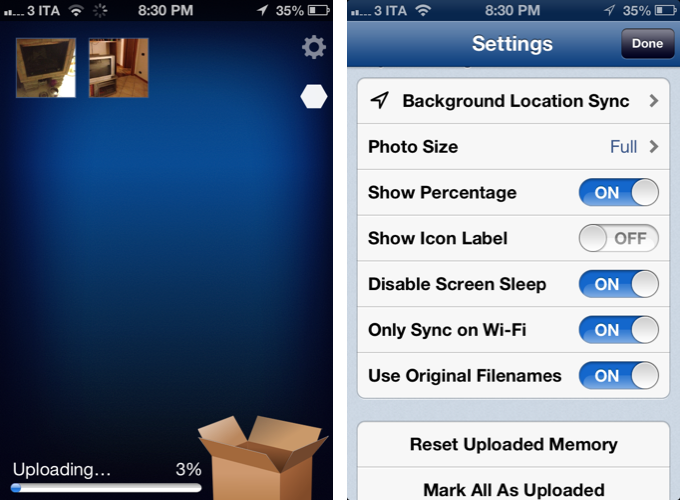
Thanks to a third-party app, I’ve managed to (partially) automate the process of uploading photos from my iPhone (and iPad) as soon as I get home. I’m now using CameraSync to upload photos to Dropbox automatically. Read more


iOS 6 and Developers

iOS 6 and Developers

Over at TidBITS, Matt Neuburg has posted a clear and concise overview of what iOS 6 means for third-party developers. Among the mentioned technical changes, he talks about UICollectionView:

The major new widget that will have the biggest impact on app interfaces is the collection view. A collection view is like a table view on steroids. A table view is the scrolling column of cells commonly seen in any master–detail app where a list must be displayed; Settings, Mail, and Music are familiar examples. A collection view breaks the bonds of the single vertically scrolling column, so you can expect, in short order, to see horizontally scrollable rows of data, multicolumn tables, and grids of information.

While web-based, some of the conventions of the new App Store in iOS 6 (horizontal-scrolling lists, grids) could be replicated with UICollectionView. I’d argue that many of the changes brought to the App Store are actually making some parts of search and discovery worse, but that’s not the point.

What matters is that, with each new version of iOS, developers are given more powerful tools to build new apps and refine existing ones. As I wrote in my piece about iOS 6, Apple understands “the importance of a healthy developer ecosystem that sets iOS apart from the competition”.

To get a good overview of the changes for developers in iOS 6, I recommend reading Matt’s article.

Permalink

Latest Dropbox Beta Brings Redesigned Menu

Announced last night on the public forums, the latest beta of Dropbox 1.5 for Mac brings a completely redesigned popup menu, support for Mountain Lion’s Notification Center, a new installer, and better performance.

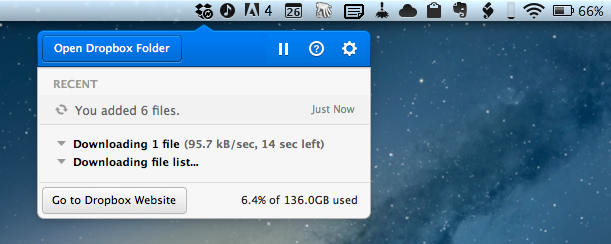
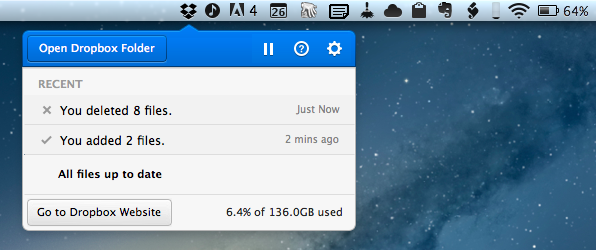
Sporting a new modern look, the redesigned popup menu is reminiscent of “popovers” that have become extremely popular among iOS developers. The new menu takes a more visual approach at displaying changes in your Dropbox, with icons for added or deleted files (that you can click to quickly go to Dropbox), a play/pause button for sync, and a large “Open Dropbox folder” to launch a Finder window at the “root” of your Dropbox.

This new popup combines all the functionality from the older tray menu with a new view of your Dropbox’s event stream, letting you see your (or other people’s) latest changes. In addition, you can use the events to easily view, share, or restore files.

Alongside the new appearance of Dropbox in the menubar, the team also says version 1.5 will bring full Notification Center support and a new, simpler installer for Mac users. The new installer works as advertised: you can simply double-click the icon for Dropbox to “update” itself to a new version. Unfortunately, while enabled in Notification Center, I haven’t been able to test the new notifications on the desktop, as I assume the functionality isn’t quite ready yet in this beta.

Personally, I think what Dropbox is showing in this experimental build is very promising. The popup menu was in need of a serious upgrade, and I’m looking forward to seeing how it will evolve throughout the next betas.

To download the latest Dropbox experimental build (and send feedback to the developers), you can head over the Dropbox forums.


Where Great Animations Make All the Difference

Where Great Animations Make All the Difference

Ben Johnson of Raizlabs writes,

Animations can make a world of difference in the user experience of a mobile app. Most of the time, we don’t even notice these animations in the same way that we rarely notice the environmental sound effects (by foley artists) that are added to most motion pictures. It is important when building mobile apps to remember that animations can be a powerful tool and can often do more for a user’s experience than the interfaces they inhabit. They Inform, Enable, Welcome, and Delight us. Below are a few examples (from iOS) of great animations that fit into these four categories.

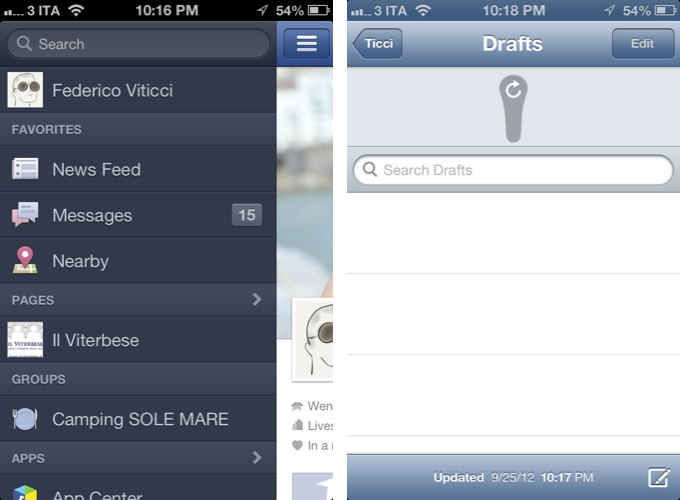
It seems obvious right? The classic instance of where animations can make all the difference could be something as simple as loading a specific splash screen before the content loads so that apps, to the user, appear as if they’re loading quickly (less of a problem nowadays). Today, with gesture driven interfaces being the norm on mobile devices, animations can guide the user through the interface or help them find their way back home. In cases like Mail, animations verify that an action took place (yes — your email was deleted). Ben goes through several examples from lots of popular apps that get it right. It’s also good for pointing out some of the more recent design trends (such as how navigation is revealed in Facebook).

Permalink

Jasmine: Free, Elegant YouTube Client for iPhone and iPad

In my ongoing coverage of YouTube apps for iOS (a rising trend following the removal of the official YouTube app from iOS 6), I have been able to test Jasmine, a new YouTube client developed by Jason Morrissey, creator of Alien Blue.

If you’re looking for a YouTube app that’s elegantly designed, easy to use, and that runs both on the iPhone and iPad, I think Jasmine is your best option for now. And knowing Jason, I believe the app will soon get better with fixes, more features, and improvements to the interface. I’ve been testing Jasmine for the past two weeks, and especially on the iPad, the app has become my go-to client when I want to sit back and watch some videos on YouTube.

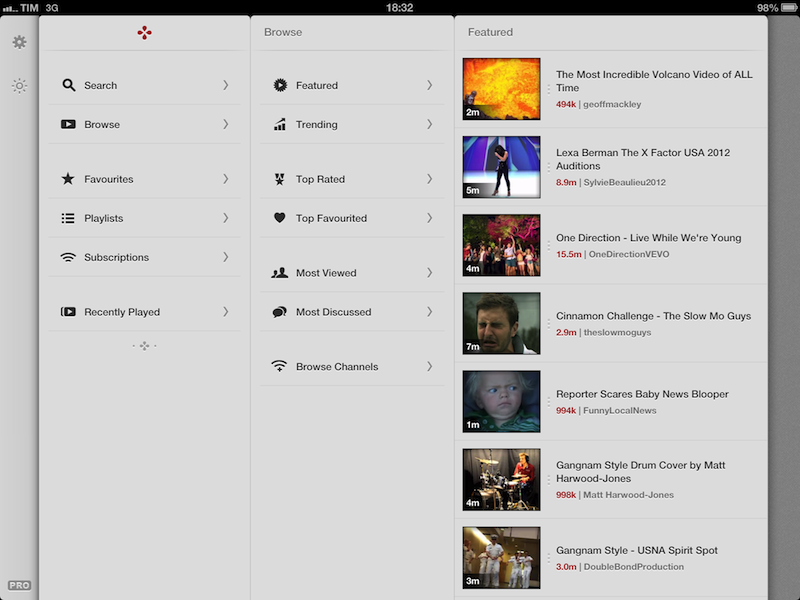
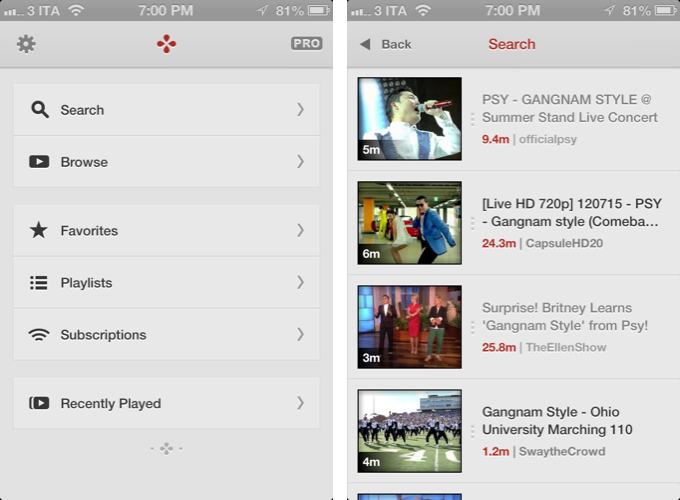
Both on the iPhone and iPad, the app has a light gray color scheme with font and menu navigation choices somewhat reminiscent of Morrissey’s work with Alien Blue; the app is fast at moving between sections, and you can tap on the status bar to switch to a “night mode” that makes the entire UI black. On the iPad, the app makes use of a Tweetie-inspired panel navigation, both in portrait and landscape mode; the performances are good, and panels contribute to facilitating the process of instantly seeing whether a video belongs to a playlist or a search query. Speaking of search, one of Jasmine’s nicest touches is the search field, which rotates and expands inline with a cute animation. I’d like to see search suggestions in a future update, though.

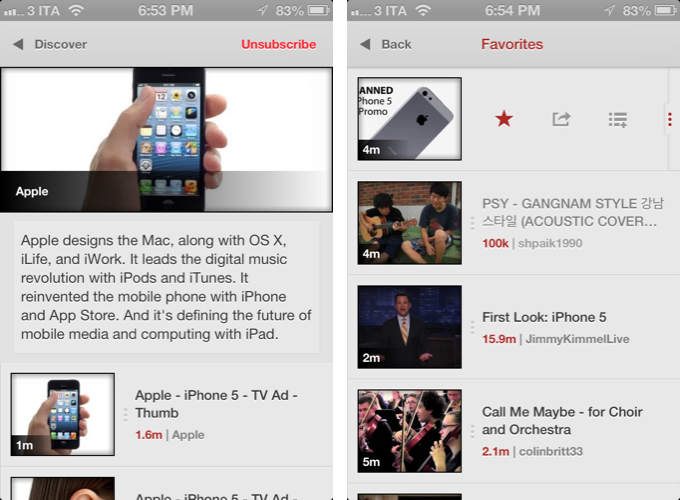
In Jasmine – like any other client these days – you can log into your YouTube account, or use the app to just search and browse YouTube content. The main screen/panel features shortcuts for search, browse, favorites, playlists, subscriptions, and recently played videos. The latter is just a local collection of videos you’ve watched on your device – it won’t sync with History on YouTube.com or another instance of Jasmine on another device (idea: iCloud sync could be used to sync videos across devices). The “Subscriptions” section, on the other hand, does synchronize with channels you’ve subscribed to through YouTube’s website (or another app), and lets you watch videos on a single channel basis, as well as a list of “latest videos” from all subscriptions – a useful feature to catch up on every new upload. Furthermore, if you want to discover more channels, you can search, enter a specific username, or check out YouTube recommendations in-app.

As I used Jasmine, I noticed I kept coming back to the “Browse” area. I don’t typically do this on the (cluttered) YouTube website, but I found myself casually checking out YouTube’s Featured and Trending videos a lot more with Jasmine.

Both channels and videos are presented with their own custom page. Videos have a large thumbnail at the top (which you can tap to play), and more actions below, such as comments (you can leave new ones), a link to the uploader’s page, description, ratings, related videos, mark as favorite, add to playlist, and share. Sharing supports the services iOS natively comes with, and is presented through the new iOS 6 share sheet. There is no option to set a specific streaming quality (like in Tube+), but there’s a setting you can turn on to be asked every time which kind of quality you’d like to load a video with (medium, 720p, etc).

If you don’t want to open a video page to share or mark as favorite, you can swipe on a result to bring up an action bar with buttons to share, add to playlists, and star. The same can be accomplished by tapping & holding a video, and I wish this feature also allowed me to quickly open an uploader’s page, like FoxTube does.

There are some things I wish Jasmine did better. For instance, I can’t find a section to catch up on the videos I “saved for later” on YouTube; and speaking of available sections, I think that, on the iPad, the larger screen could allow for an option to save personal shortcuts (say, to a playlist or search) in the sidebar.

On the surface, Jasmine looks extremely simple. But don’t let the app’s clean design and no-clutter approach fool you: Jasmine packs a lot of YouTube functionalities as well as nicely implemented little touches (the pinch-to-close gesture to dismiss panels on the iPad, the custom pull-to-refresh animation) that make for an intuitive and pleasant YouTube experience on iOS. And like I said above, if you own an iPad and have been looking for a great YouTube client, you should check out Jasmine.

Jasmine is free, with an in-app purchase to unlock parental controls and support the development of the app.