Posts in mac

Delivery & Smaller: Object Dock Batch CSS & Javascript Compressors

Javascript & CSS developers looking to batch minify their files may already use the command line, but others will prefer an OS X inspired drag & drop solution. These YUI Compressor’s will gobble down your web files and spit them out with a smaller byte footprint, though the choice between these two compressors may be difficult because they’re… very similar. Quickly running through the features, we’ll leave you to decide if Delivery or Smaller will be better for your workflow.

Delivery:

Delivery is the least expensive (free), but provides the fewest options when minimizing your files. Dragging in Javascript & CSS files onto its Object Dock icon, a couple badges emerge notifying you of how many files you’re compressing, along with how much space was saved at the end of the operation. Delivery uses two compression algorithms, and decides between the one that will leave you with the smallest files. While you don’t have a choice for output (there are no preferences), Delivery places the compressed files back in their working directory with .min appended to the file names.

Smaller:

More expensive at $15, Smaller offers a GUI and allows you to compress files to a new location if you desire. As you add files to a graphical queue, you initiate the minify process (and you have the option to obfuscate Javascript as well) manually, but you don’t get a nice badge notifying you like Delivery. We like Smaller though as you can acknowledge the minimize process before committing, and has preferences that allow you to chose the resulting suffix.

Conclusion:

We suggest you give them both a try, and I have to thank our web guru Alessandro Vendruscolo for the rundown. Overall we like Delivery because it’s free and takes less actions to use, while Smaller gives you some additional options that removes the terminal barrier for web designers. You can check out Delivery and Smaller at their respective home-pages for more information.



Twitter for Mac: ‘Tweet’ from Anywhere in OS X

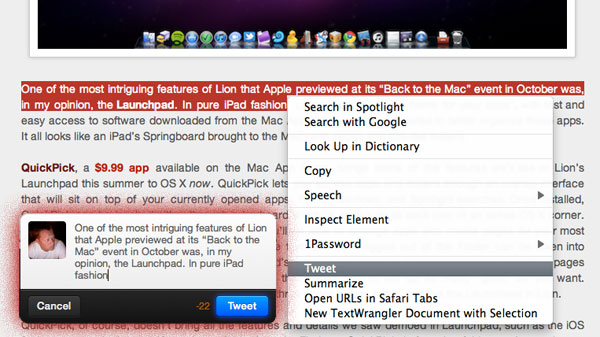
Just a few days ago everyone (including us) was talking about a simple bookmarklet for Safari that sends the site title and link to Twitter for Mac (Tweetie 2). Last night, I even found a Safari extension that did the same thing but also adds a tweet option in the contextual menu (right click) within Safari. Right after I tweeted the link, @SebastienPeek told me “who needs that when you can highlight anything, right click and it’ll show Tweet?” I had no idea what he was talking about, do you? I asked him if it was Safari only and he went one step more and said that it’s system wide, you can do it with a right click and highlight of any text. @BoltClock is credited with pointing me to this discovery. It’s system-wide for all apps that support Mac OS X’s contextual menu item additions. Here’s some visual goodness:

Read more


Translator Free Translates Webpages & Text On The Fly

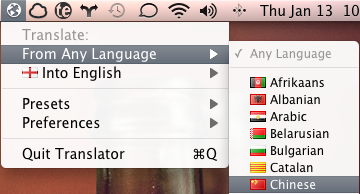
When you run across a piece of text that you can’t translate, do you find yourself in Google Translate, copying & pasting the text, before trying to determine what was exactly said? Why not cut out the middle-man and download Translator Free for OS X? Available on the Mac App Store, Translator Free is a menubar application that allows you to drag and drop websites and text for immediately translation. If you’re visiting our friends at iSpazio for example, you can simply drag the favicon from Google Chrome into the menubar icon, and a new tab will open with the translated page. It’s very cool.

If you’re throwing Chinese insults at me, watch out! Never before have friends on Facebook Chat been caught off guard so quickly now that I suddenly have language-esque superpowers. You can highlight a piece of text, hold your mouse button down, and simply drag it to Translator Free for instant translation. A window will pop-up allowing you to compare the original and translated texts.

Free in the Mac App Store, students, researchers, and anyone coming across foreign text they’re not familiar with can find Translator Free useful without having to go through the web browser. You can catch some great tutorials on Translator Free’s homepage, and download it here on the Mac App Store.


#MacStoriesDeals - Wednesday

Soon we will have a better rotation of Mac App Store sales once I find an easier way to look for deals. Anyway, here’s today’s deals on iOS & Mac (Store) apps that are on sale for a limited time, so get ‘em while they’re hot! Read more


#MacStoriesDeals - Tuesday

So are you loyal AT&T iPhone people switching over to Verizon after the big announcement today? I really doubt I leave AT&T. Anyway, here’s today’s deals on iOS & Mac (Store) apps that are on sale for a limited time, so get ‘em while they’re hot! Read more


There’s a 3D Kinect Viewer In The Mac App Store

We have talked about the coolness and the hacking possibilities offered by Microsoft’s Kinect before. First we heard Apple almost bought the technology from its original creators in 2008 (the rest is history, it got sold to Redmond), then we saw Kinect connected and displaying stuff on OS X and also somehow hooked up to a computer and an iPad with…futuristic cubes.

Now, thanks to the Mac App Store, we have a free 3D viewer for Kinect. When connected to a Mac via USB, the app can visualize tridimensional images of the depth data, and map RGB values onto this depth image. You can zoom, rotate and, of course, take a good screenshot with your Mac to show to your friends on Twitter.

Kinect 3D Viewer for Mac is free and available here.