

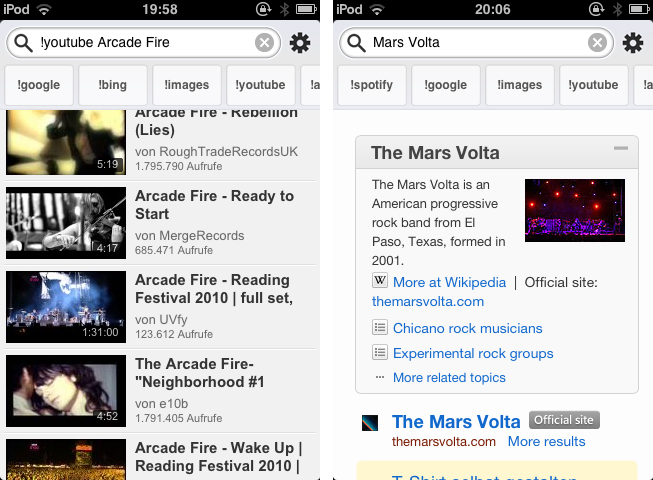
Mobile search is and has ever been a very problematic area. After nearly five years of iPhone, developers are still discussing iOS browser search functionality, speed, and the right way of implementing it into the devices workflow. When it comes to services other than Google or Bing, Apple took the easy way by dividing its mobile OS into multiple apps with each one having its own searching capability (Safari for websites, YouTube for videos, etc.). This trend did not stop after the launch of the App Store: third-party apps like Articles and more recent examples like Spotify rely on their own search engine implementation. Bang On by Derek Kepner might be able to change that. Read more
Posts in reviews
Bang On Centralizes Mobile Search
Justnotes is Simplenote’s Desktop Companion and a Little More
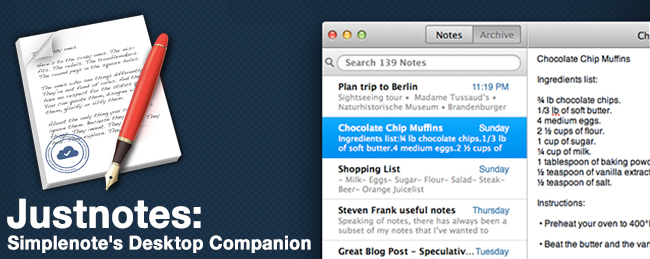
I already know what you’re thinking: “Justnotes looks a lot like nvALT.” You wouldn’t be wrong in thinking that Justnotes is visually reminiscient of Notational Velocity and its poweruser fork, nvALT, but it wouldn’t be fair to judge without getting hands on. I’d posit Justnotes as an alternative to TextEdit on OS X — it’s a container for creating, sorting, and archiving text files. Otherwise, Justnotes is simply the desktop counterpart to Simplenote… With a twist.
Due, the Super-Fast Reminder App for iOS, Now Available for the Mac
I remember the first time I heard about Phocus’ Due - John Gruber linked to it. After buying it, Due has always stayed on my iPhone. I’ve tried many similar apps, but Due has always been my go-to application. Due isn’t trying to compete with the larger, more involved GTD apps, so anyone can use it and learn to love it.
One of the most important features of Due has always been the auto snooze feature, as Calendar events and Reminders will show you something once, then vanish back into the OS. Due will continually remind you about something until you get it done, and that’s what I love about this app. I also love that each alert is customizable - need to delay it an hour, a day, or a few minutes? No problem! The timers are also fun and much better than the iOS Clock functions. I use several timers when I’m cooking or grilling, whether it’s flipping burgers or making homemade eggrolls. Due for iOS is a very popular reminder and timer application for iOS, available as a universal application that looks great (and is retina-ready) on both the iPhone and the iPad. We have covered Due several times before, but now it’s available for the Mac!
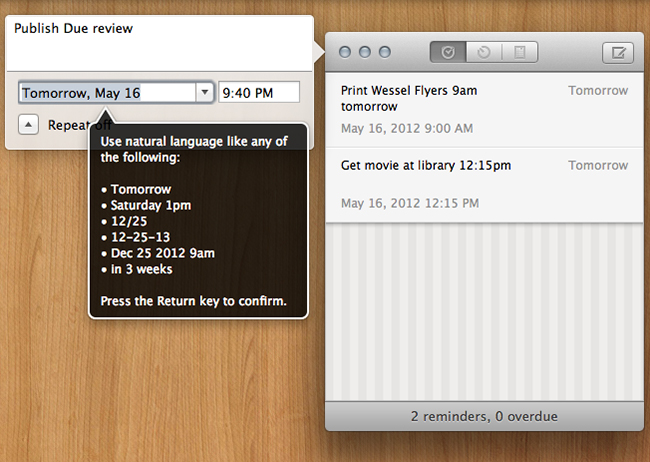
I was priviledged to help test this app from its inception and it’s been exciting seeing it evolve into the 1.0 release in the Mac App Store. The UI is very similar to the iOS counterpart, so the learning curve is very fast. It has those wonderful pinstripes and the pop-up windows look very nice. The icon is very slick - one of the best I have seen for a reminder application. Due for Mac (along with the iOS version) uses iCloud or Dropbox syncing so that all of your data is available no matter where you are. Set a timer on the Mac app, launch the iOS version so that changes can sync, then go outside. When the timer is up, your iPhone will alert you that it has expired. I prefer iCloud syncing as it is hard wired into the OS; in all my 1.0 testing, sync was fast and flawless.
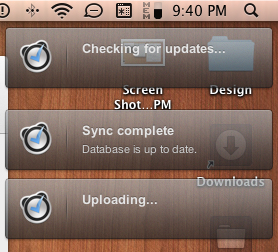
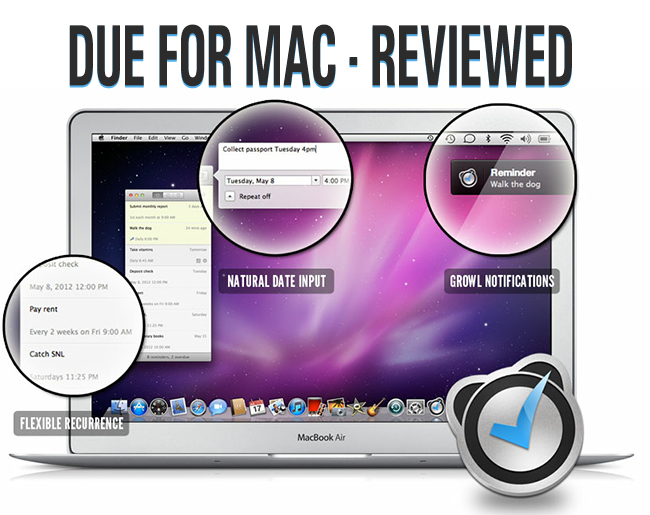
Like all other versions, Due has natural time parsing which makes it a breeze to enter reminders. Type, “Make dinner reservations with wife at 10am tomorrow” and your reminder is set for 10 AM tomorrow. ”Cancel Spotify and renew Rdio subscription in 1 month” and you get a buzz a month later. There are no awkward date pickers, nor rigid date and time format to follow.
As with the iOS versions, assignable alert sounds are available for the Mac. You can use louder and longer alerts for very important reminders, and softer ones for regular reminders.
Power users will love all of Due for Mac’s shortcuts. Don’t worry about using your trackpad - show or hide Due, create reminders, reschedule them, mark them complete, delete them - it’s all a keyboard shortcut away. Due for Mac also supports Growl notifications. If I had to comment about something that I’d like to see it would be a global hotkey to bring up Due no matter what you are doing, and I’d also like to see an optional menu bar icon.
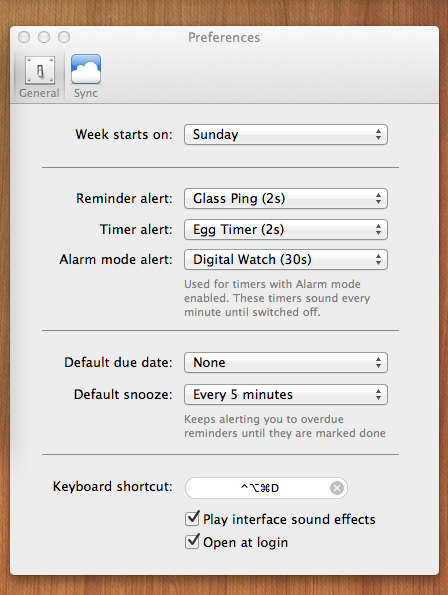
Due is a very fast reminder and timer application. I’d like to think it’s Reminders on steroids. Due is $9.99 and available via the Mac App Store. The iCloud (Dropbox) sync is worth $10 alone and if you already have the universal iOS app, iCloud and Dropbox sync make Due for Mac a must buy. If you’re looking for a great reminder app to add to your arsenal, you can’t go wrong with any of Due’s weaponry. $15 will cover every one of your devices.
Preview iOS Designs Instantly With Skala
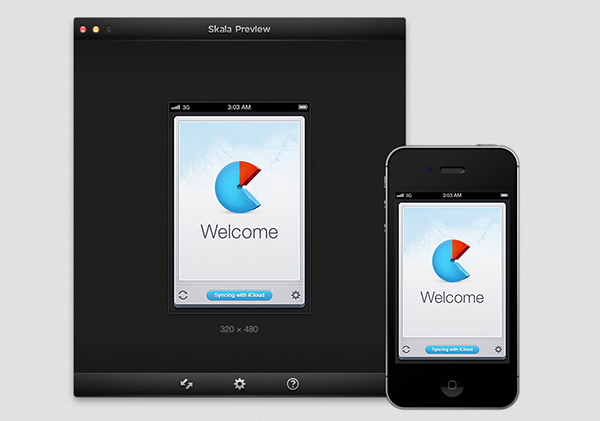
A while ago I wrote a quick review about Screenshot Journal, a utility to archive and investigate iPhone and iPad screenshots on the go. It features a zooming capability of up to 400% to inspect single pixels in order to easily find design flaws, but to transfer those screenshots back and forth, I personally use Pastebot. As I recently found out, developer Bjango offers a kind of a mixture of these two worlds: Skala.
Skala is a tool for designers to easily check iPhone or iPad UI designs (or other creations like wallpapers, etc.) they made on their computers on the screen of iOS devices. Skala comes in two apps: Skala Preview on the Mac — which ironically features a 3D version of the feared OS X beachball as its icon — and Skala View on iOS. The latter obviously works on both the iPad and iPhone, but because the design is the same in both cases, I’m going to focus only on the iPhone version here. Read more
EdgeCase Stops Your Cursor Where Your Monitors Meet
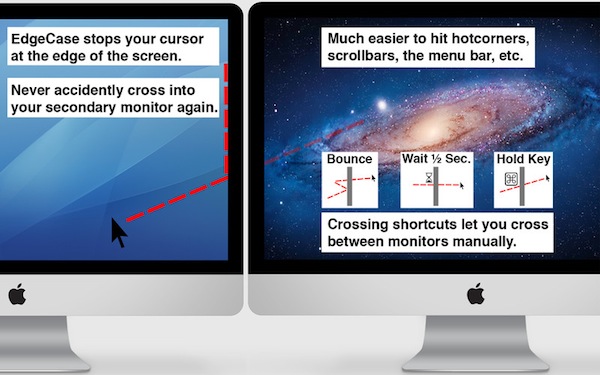
I don’t use more than an external display or my MacBook’s internal display since managing a multi-monitor setup isn’t practical with Lion, but in the rare occasions that I do, my cursor always finds a way of wandering off the display I’m working on. EdgeCase boxes your pointer in the current display by putting up a virtual barrier that prevents your cursor from crossing onto the other display unless you hold down a specific key or wait a half-second.
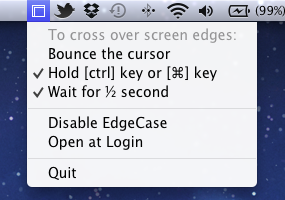
As a simple menubar utility, EdgeCase lets you disable and enable the utility and click one of a few options to get it up and running. By default, EdgeCase will require you to bounce your cursor when it reaches the meeting edge before it transverses displays, but you can turn it off if you desire. Holding down the ctrl key or command keys will grant you access to third party displays: command-dragging app windows will let you carry your application between displays.
I’ve been using EdgeCase to process email and write on one display while watching videos on the other: it’s pretty useful for keeping work and entertainment displays separate. EdgeCase is $4.99 from the Mac App Store.
Compare Timezones On The Go With Timelanes

When I ask myself what timezone a friend (or more recently, colleague) lives in, I fire up the Clocks app on my iPhone or Every Time Zone when I’m on my Mac. In many cases, this needs quite some time and disrupts my workflow; I need to go back to my mail or calendar or any other situation which required this knowledge (meetings, mails or projects) and apply the time differences to them. Yesterday, I stumbled upon Timelanes by B-ReelProducts, immediately bought it, and from time to time while trying it out, I remembered some awkward situations in which I could have needed exactly this app to enhance my workflow.
Timelanes basically is Every Time Zone on the go — with some handy extras and a different, but in no way worse UI. When launching it for the first time, the app automatically locates your current timezone and displays it styled as a horizontal lane. This way, it centralizes your chosen hour of the day, plus indicating the exact current time with a small clock indicator. At the same time, you can easily switch between the days or come back to the current time using the arrows and the clock button at the center of the navigation bar at the bottom of the screen, or you can scroll horizontally until you reach the exact point in time you need (Timelanes works both in portrait and landscape mode).
From here, comparing timezones and times is just two taps away. Using the plus button, you can search for any city in the world — not just those standard “indicating” cities like NYC or Mumbai — and add them to your lanes. Those behind your current timezone are displayed above, those ahead are arranged below it. Tap the weekday information and it will change to the actual date, so you can see when the new day begins in every timezone; swipe one, and you can delete them again. Here lays a small and more or less the only design flaw of the app: the edges of the delete button are scruffy and look pretty ugly in my opinion. Read more
Review: World Atlas For iPhone
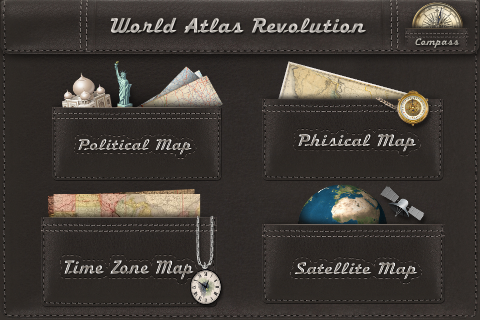
Good design certainly is not all to care about. Sometimes, a nifty UI can solve many problems or even hide certain failures in functionality. But it can be as perfect and unique as conceivable — if a product doesn’t work at all, good design cannot change that. Unfortunately, I came across a very good example for this: World Atlas by Technoplus. I only tested the iPhone version, so I cannot tell anything about the usability of the separately sold iPad app yet. But on the iPhone, it’s easy to sum up World Atlas as a well-designed, yet pretty useless app, coded without real care for good UX and features. Read more
iTranslate Voice: A Siri-like Translator Powered by Nuance
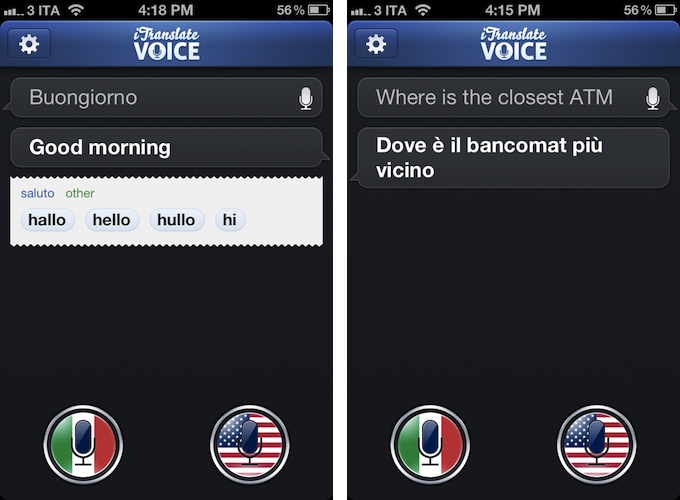
According to Apple, Siri, the iPhone 4S’ virtual voice-based assistant, will gain support for additional languages in 2012. While international users are still waiting for Siri to support the creation of reminders, events, and messages in their preferred language – not to mention all the other functionalities that Apple enabled in the first “beta” of the assistant – it is still unclear if Siri will ever officially support a feature that has always seemed perfect for voice input and interactions: translations. iTranslate Voice, a new utility by Sonico Mobile, wants to fill this void with a Siri-like interface for an iPhone app powered by the same tech behind Apple’s solution: Nuance.
If Siri could do voice translations, I imagine they would look exactly like iTranslate Voice, as Sonico’s app borrows heavily from Siri in terms of overall interface design and style. Like Siri, iTranslate Voice displays ongoing voice interactions as conversations between you and the software; like Apple’s assistant, conversations are initiated by tapping on a circular, glowing microphone button that, however, in this app has been styled with flags. Conversations can be scrolled vertically, and tapping on single “bubbles” will you give you options to copy, share, or “speak” the words you dictated again. By tapping and holding the latest entry in a conversation, you can directly modify the words you said using the iPhone’s keyboard – this can be particularly useful to refine text input in case the app didn’t get some details right.
iTranslate uses Nuance’s speech recognition software to recognize and translate voices. iTranslate supports 31 languages, but only some of them support both voice recognition and text-to-speech. A complete list of supported languages (which also includes dictionary definitions, automatically displayed inline when available) is available on the developers’ website. Like Siri, iTranslate Voice requires an Internet connection to operate – something that, I presume, is related to some heavy server-side processing and sampling the app does in order to deliver high-quality and timely results without wasting the iPhone’s local storage.
In my tests, iTranslate Voice has been extremely accurate and reliable. I was surprised at first, but on second thought I realized that the fact that Nuance is delivering good translations in seconds as you talk to your phone shouldn’t really be a surprise at this point. I have tested the app with Italian-to-English translations (and vice versa), and the results have been more than decent – I actually think they are the best ones I have found on iOS to date, and this speaks clearly of Nuance’s strong position in the market. I don’t know if the developers are also enhancing Nuance’s results with their own engine of sorts, but the end result is what matters, and iTranslate Voice doesn’t disappoint here. The app recognized first names and terms like “ATM”, handled common expressions well, and it even understood spoken punctuation in Italian (“virgola” for comma, “punto interrogativo” for question mark, and so forth), adjusting the sentences and tone of software accordingly. Results are delivered in seconds both on WiFi and 3G, and the app also does a good job at detecting end of speech if you enable the option in the Settings.
I won’t judge Sonico’s decision to make iTranslate Voice look like Siri, but I will say that the system undoubtedly works, and makes it easy to speak to your phone to get instant, spoken translations. I can’t shake the feeling that this, like Siri, feels like the future of human-to-computer interactions being built right now, and regardless of whether Apple and Nuance will eventually bring this feature to Siri, iTranslate Voice is impressive and you can get it today.
iTranslate Voice is available on the App Store at $0.99.
The Magic Of Words, Or: Why I Am Addicted to SpellTower
I still remember the day when Chris recommended this game to me – SpellTower. When I looked at the game’s website for the first time, I asked myself whether it could be a new subject for my Inspiring UI series. Although I concluded that it would not fit the series, the website nevertheless looked like the game could be worth my time. Zach Gage, the developer, promotes SpellTower with a nice scrollable site, containing some lovely designed icons and symbols, large, mono-colored backgrounds, and some moving CSS3 flavour. It is a lovely website you should take a look at – whether you’re interested in games or not – just for the sake of admiring Zach’s work as a web designer.
But since I am interested in iOS games and I was curious to see if the game could live up to the site’s promise, I downloaded SpellTower for the ludicrously low price of $1.99 (actually, it’s currently on sale for $0.99, so please head over to the App Store to get it first, then continue reading afterwards). Allow me now to shortly recap what playing SpellTower is all about (the app features a one-minute tutorial, which also interactively explains the game’s concept). To summarize it in one sentence: to me, SpellTower is like Tetris with words.
Random blocks with letters arranged in twelve rows cover the screen, and you have to connect letters located abreast of each other. Some letters need to be included into certain minimum lengths, indicated by a small number in the top right of their square block, and words touching black boxes without letters will delete them. Blue colored letters included in a word (these are letters which are hard to incorporate into words, like “Z” or “J”) delete a whole row and generate a lot of points. Apart from those special features, the game follows one simple rule: the more letters a word has, and the more rare those letters are (a “Q” is obviously more valuable than an “E”), the more points you earn. That’s all there is to say about the game’s concept: you can start playing SpellTower within seconds, a prior condition a game needs to get you addicted to it.
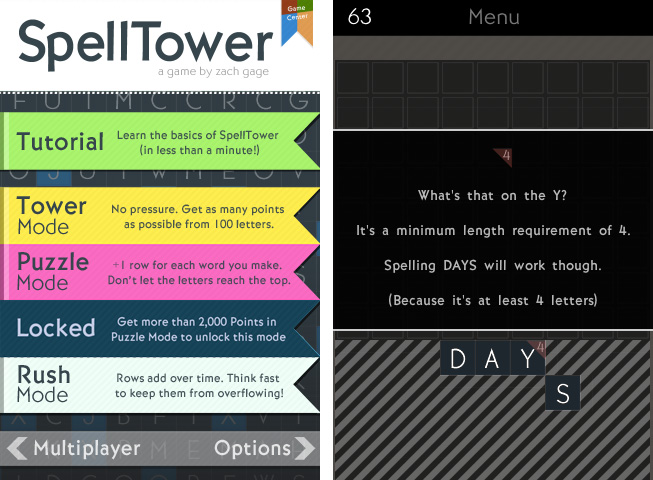
This principle is translated into five different game modes, two of which you can unlock by reaching extraordinary results in the two basic ones: tower mode, where the screen is completely filled up with letters and the goal is to make as many points with them as possible; and the more tactical puzzle mode, which starts off with five rows, adding one row for each word you spell until the letters reach the top and the game ends. You can also play rush mode, which is the closest match to the idea of Tetris: rows add over time (whether you spell words or not), and you need to quickly eliminate them to prevent a letter from reaching the top. While I’m not the best at puzzle and rush mode — I do not even reach the 1000 points mark, and to unlock the fifth mode you need more than 2000 points — playing the tower mode always is a lot of unconstrained fun and makes me coming back again and again.
So, how exactly is this addiction accomplished? I think it’s a combination of three factors that Zach managed to mix perfectly: UI design, highscore competition, and a vocabulary learning process. Read more