

Next week on AppStories, Federico and John share some of their favorite visionOS entertainment apps. Next week onMagic Rays of Light, Sigmund and Devon Sigmund and Devon discuss new Apple Original comedy series The Completely Made-Up Adventures of Dick Turpin, Apple’s brand new Sports app for iPhone, and the potential for immersive video across...
Apple Vision Pro Accessory Roundup: Our Favorites So Far
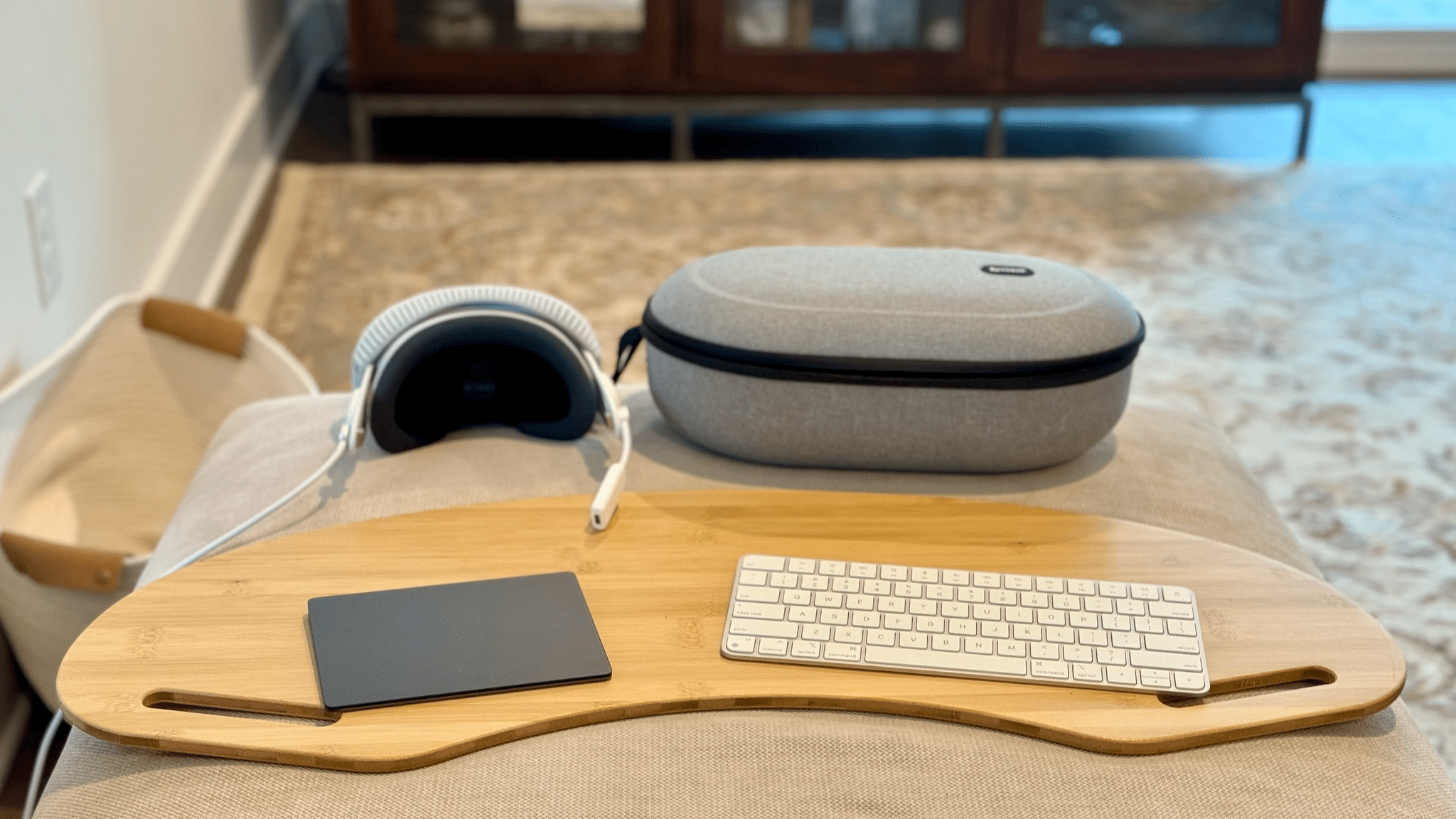
Slowly but surely, a growing number of accessories are popping up around the Apple Vision Pro. Today, we thought we’d share our favorites so far.
Battery Accessories
Battery Packs
 power bank.](https://cdn.macstories.net/anker-1708606792589.png)
The Anker Prime 27,650mAh power bank.
John: Apple sells the battery pack that powers the Apple Vision Pro as a separate accessory for $199. However, because the Vision Pro’s battery includes a USB-C port for charging it, there are plenty of cheaper solutions.
One option is simply plugging Apple’s battery into its power adapter as you use it. However, if you want something more portable, I’d suggest a battery pack to charge your Apple battery pack. Any battery pack will do, but we have several listed on our Setups page that Federico and I use and recommend and will do the trick too.
Belkin Battery Holder

Federico: I never thought I’d become the sort of person who casually holsters a tech accessory in his daily routine, and yet here we are thanks to the Vision Pro. I decided to get the Belkin battery holder upon ordering the Vision Pro, and I’m glad I did. Not only does the clip on the case make it easier to walk around the house while wearing the Vision Pro (putting the battery in my pocket causes too much tension on the cable and I don’t like it), but it also provides a nice degree of protection for the battery itself. I genuinely recommend getting this if you plan on moving around a lot while using the Vision Pro.
Keyboard and Trackpad Accessories
John: The Apple Vision Pro’s built-in keyboard and dictation are fine for entering short bits of text when you’re using the device, but for anything more than a few words, you’ll want a keyboard. The Apple Magic Keyboard works best with the Vision Pro because it integrates tightly with visionOS, displaying a preview of what you’re typing that floats just above the keyboard. Plus, Magic Trackpad is the only trackpad that I am aware of that works with the Vision Pro.
The MagicBridge or a Lap Desk
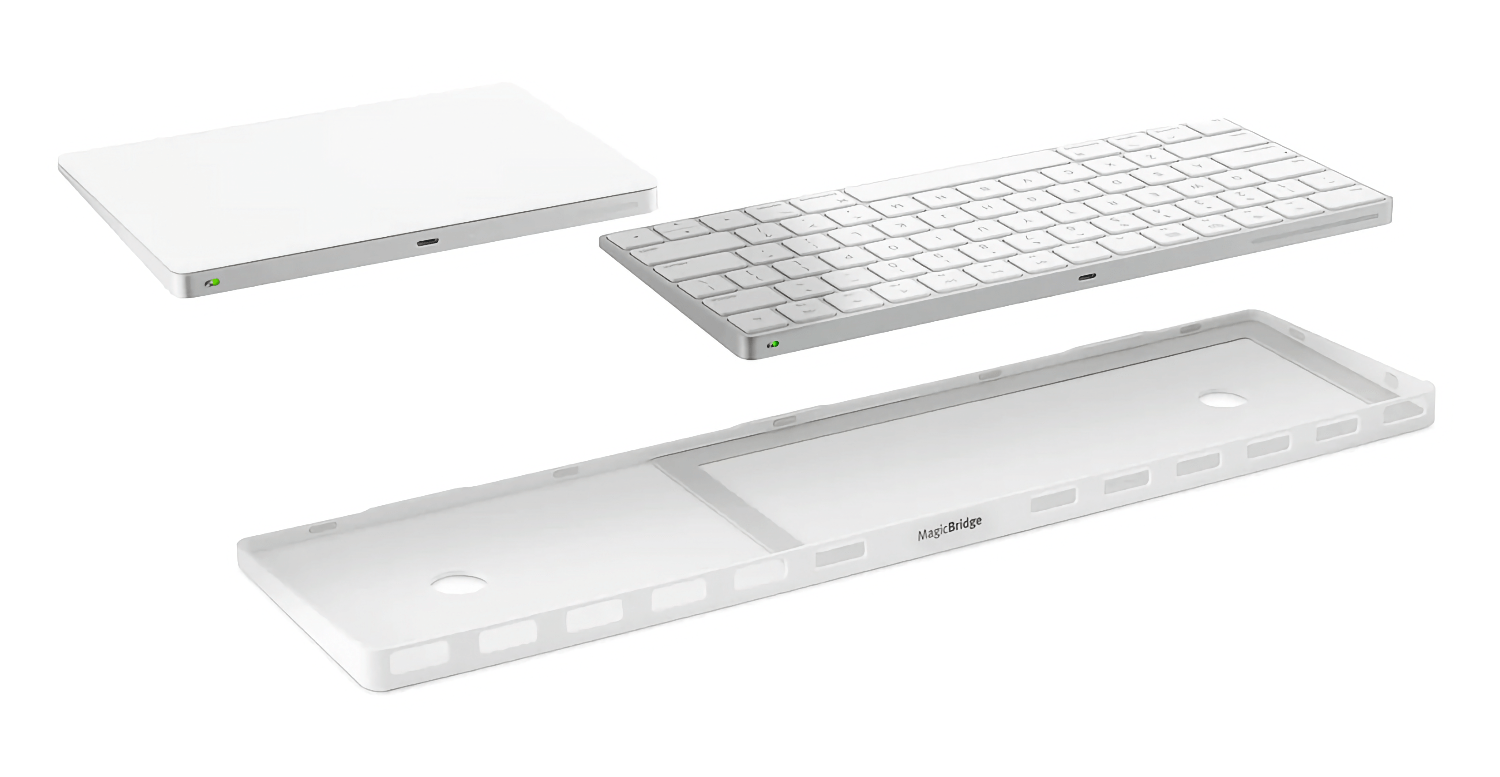
The trouble is finding a way to use the Magic Keyboard and Trackpad when you’re away from your desk or a tabletop because both are small and can be hard to balance in your lap. There are a few options here, depending on your preferences. Twelve South’s MagicBridge joins the Magic Keyboard and Magic Trackpad using a plastic frame that holds the two together side-by-side. It works much better in the lap that way, but it’s also wide and can feel unbalanced when the keyboard is directly in front of you, and the trackpad is hanging off to the side.
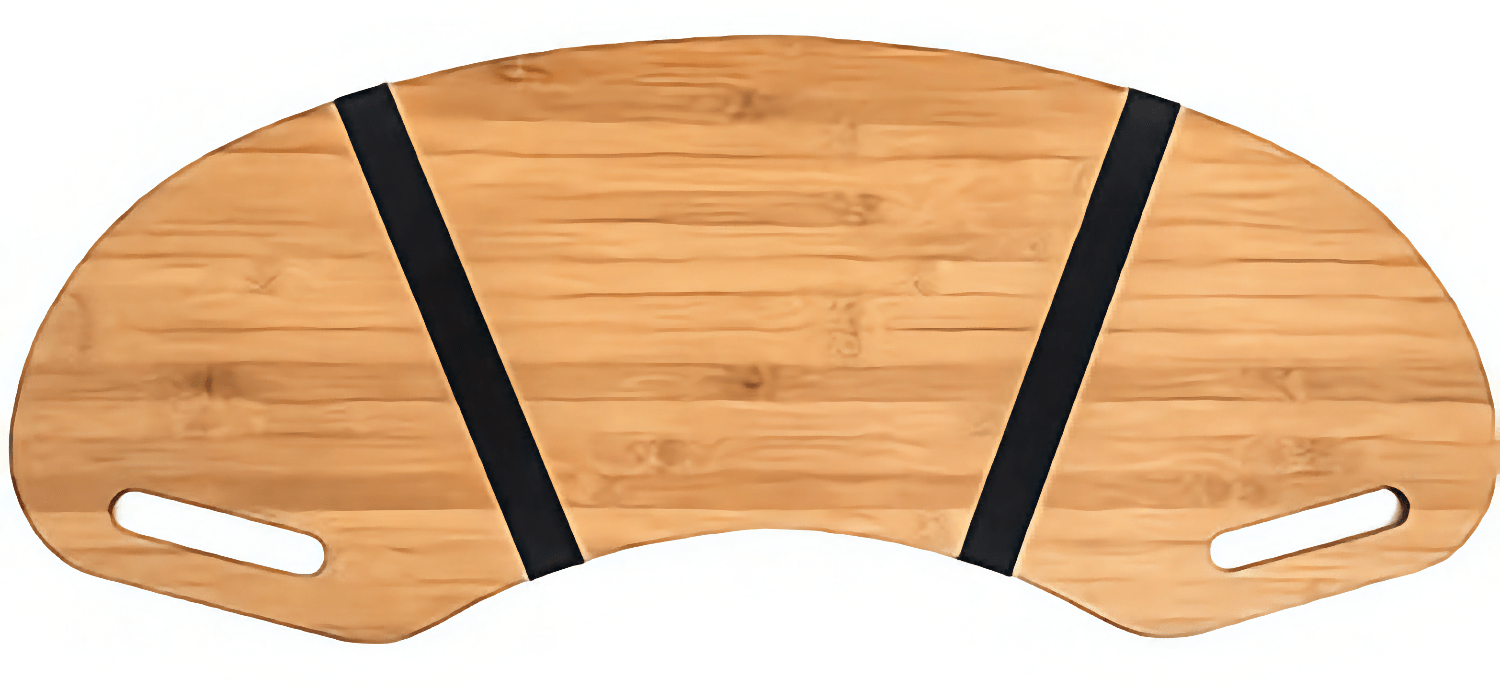
Since my initial experiments with the MagicBridge, I’ve gravitated to a lap desk for those times that I’m sitting on the couch. There are a million of these on Amazon and elsewhere. However, I like the simplicity of the 30.5” Wood Curved Lap Desk Table Tray, which is a simple curved piece of wood without any notches for iPhones or ridges to hold a laptop in place to get in my way.
Hazevaiy Acrylic Magic Keyboard and Trackpad Support Stand
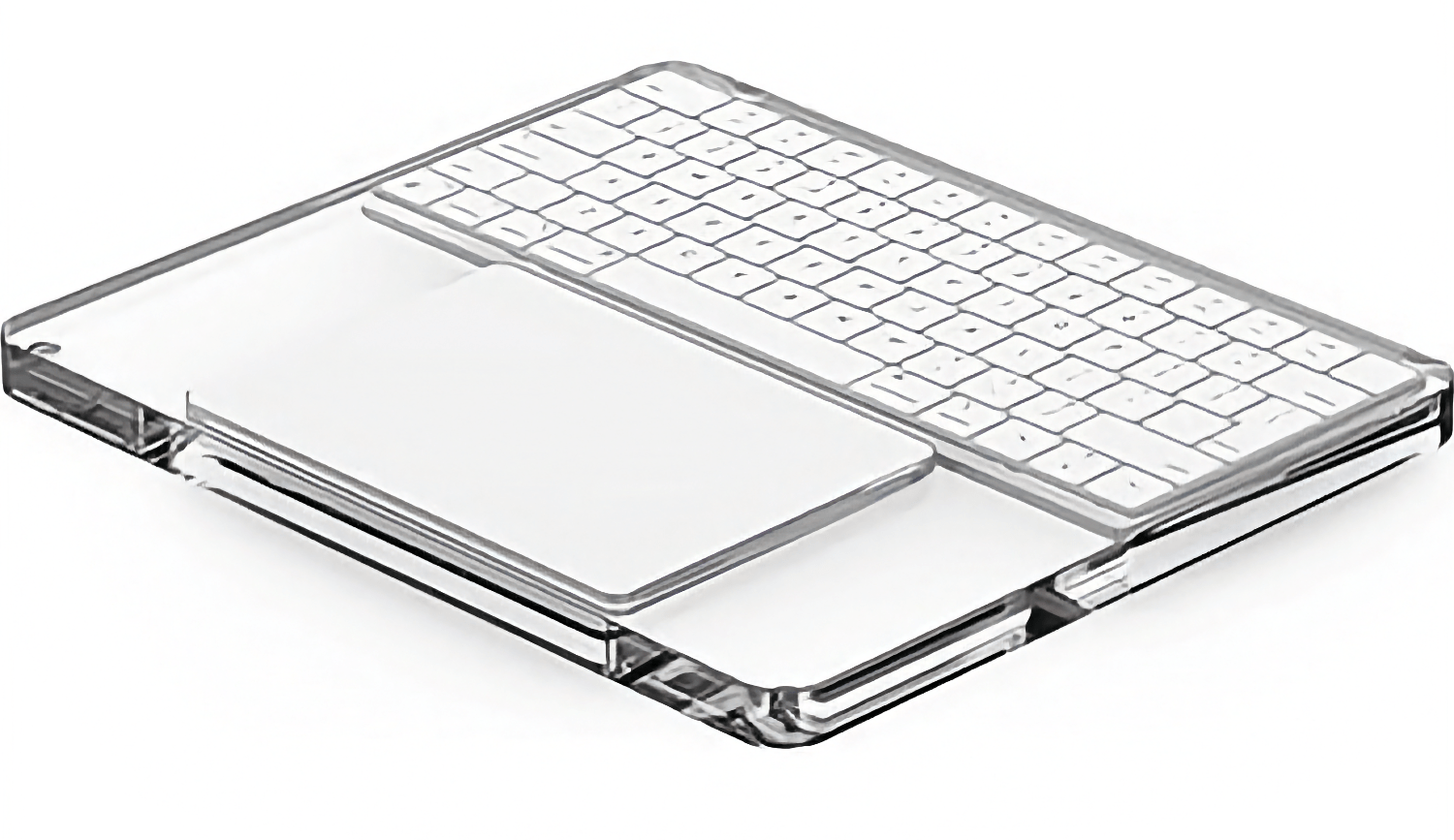
Federico: After some research and asking on Mastodon, I discovered that accessory manufacturers have been making for quite some time what is, effectively, the opposite of a MagicBridge: a tray where the Magic Trackpad and Keyboard are held in a laptop-like configuration, with the keyboard above the trackpad. I got a couple from Amazon, and I like the transparent one better than others I’ve seen thanks to its slimmer profile. (Plus, let’s face it – anything looks better when it’s made of transparent plastic.) These accessories all lack the sort of palm rejection features that are typically found on Mac laptops, so if you can get used to avoiding the trackpad with your palm or wrist when typing, I think you should consider this as a lap-friendly alternative to the MagicBridge.
A Smaller Case – Syntech Hard Carrying Case
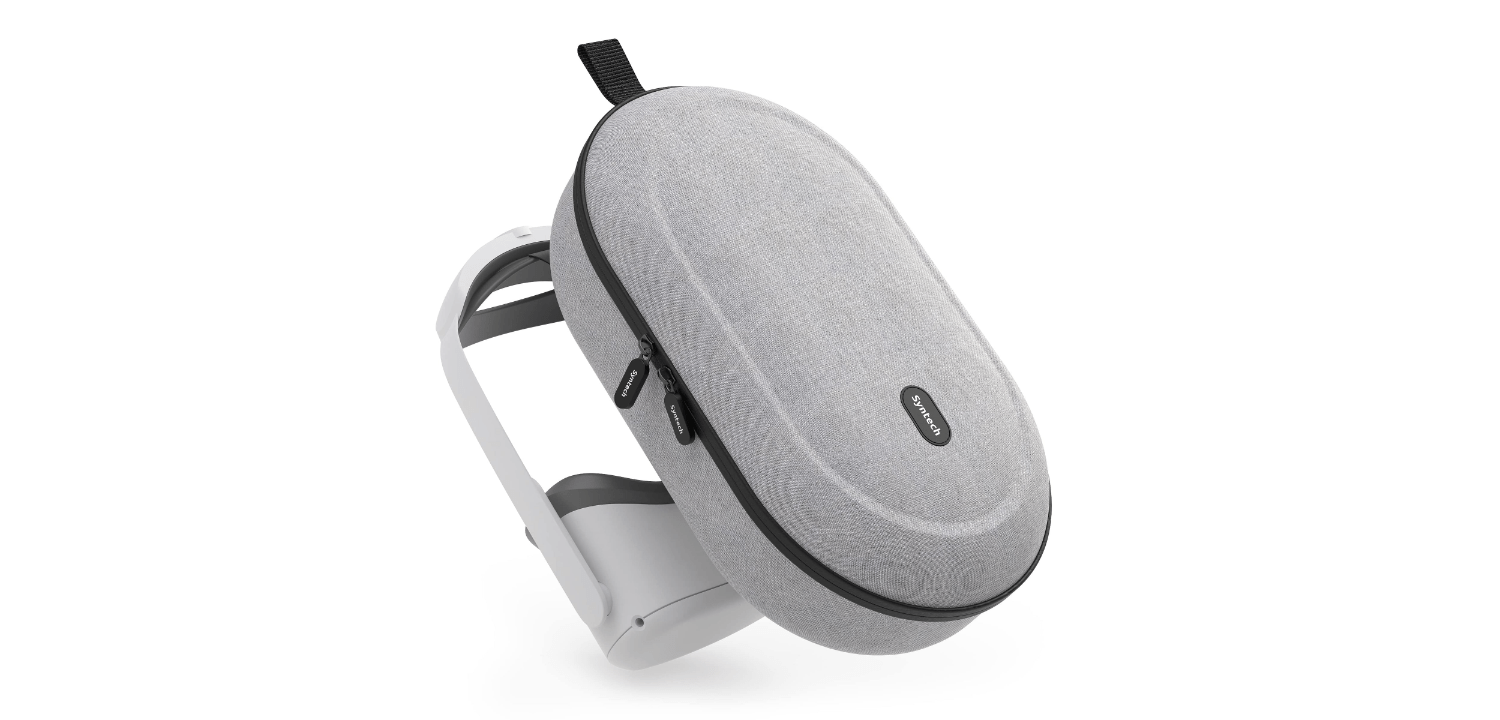
John: By all accounts Apple’s Vision Pro case is very nice, but I wasn’t interested because it’s so bulky and expensive. Instead, I went with one Federico discovered on Reddit by Syntech that was originally made for the Meta Quest. It’s not small, but it fits in a backpack better than Apple’s case ever will. Inside, there’s a velcro strap for securing your Vision Pro in place and enough spare room to stow your battery and polishing cloth. Best of all, the Syntech case is less than $30.
Protecting the Vision Pro’s Lenses - KIWI design Lens Protector Cover
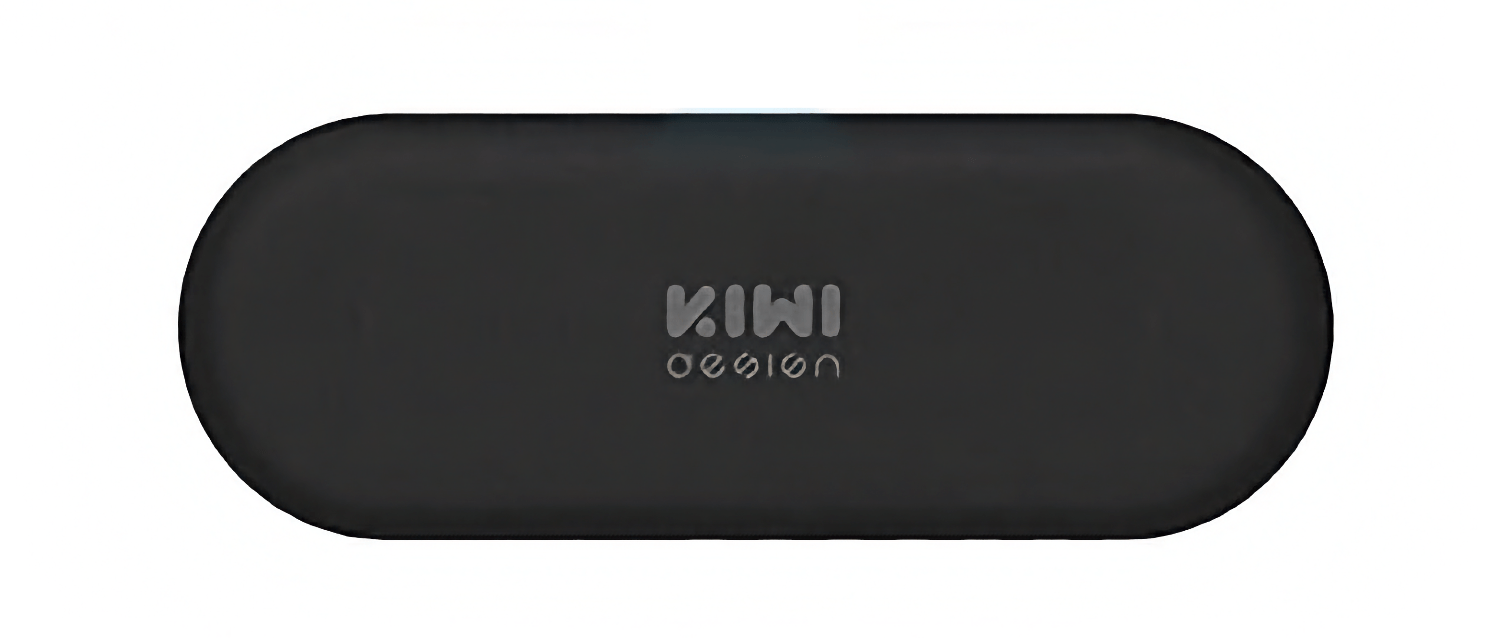
John: My most recent accessory find for the Vision Pro is the KIWI Lens Protector Cover. It’s another accessory originally designed for the Meta Quest, but it works perfectly with the Vision Pro too. There’s not much to say about the KIWI other than it’s a soft microfiber pillow that you stuff into the inside of your Vision Pro headset against the lenses to protect them. With a USB-C cable and other items in the same case as the Vision Pro, I feel better knowing that there’s a soft barrier between its lenses and everything else in my bag.
That’s it for now, but keep an eye on our MacStories Setups page for updates on the accessories we use with our Apple Vision Pros and other gear.
Paste - Endless Clipboard for Mac and iOS Devices [Sponsor]
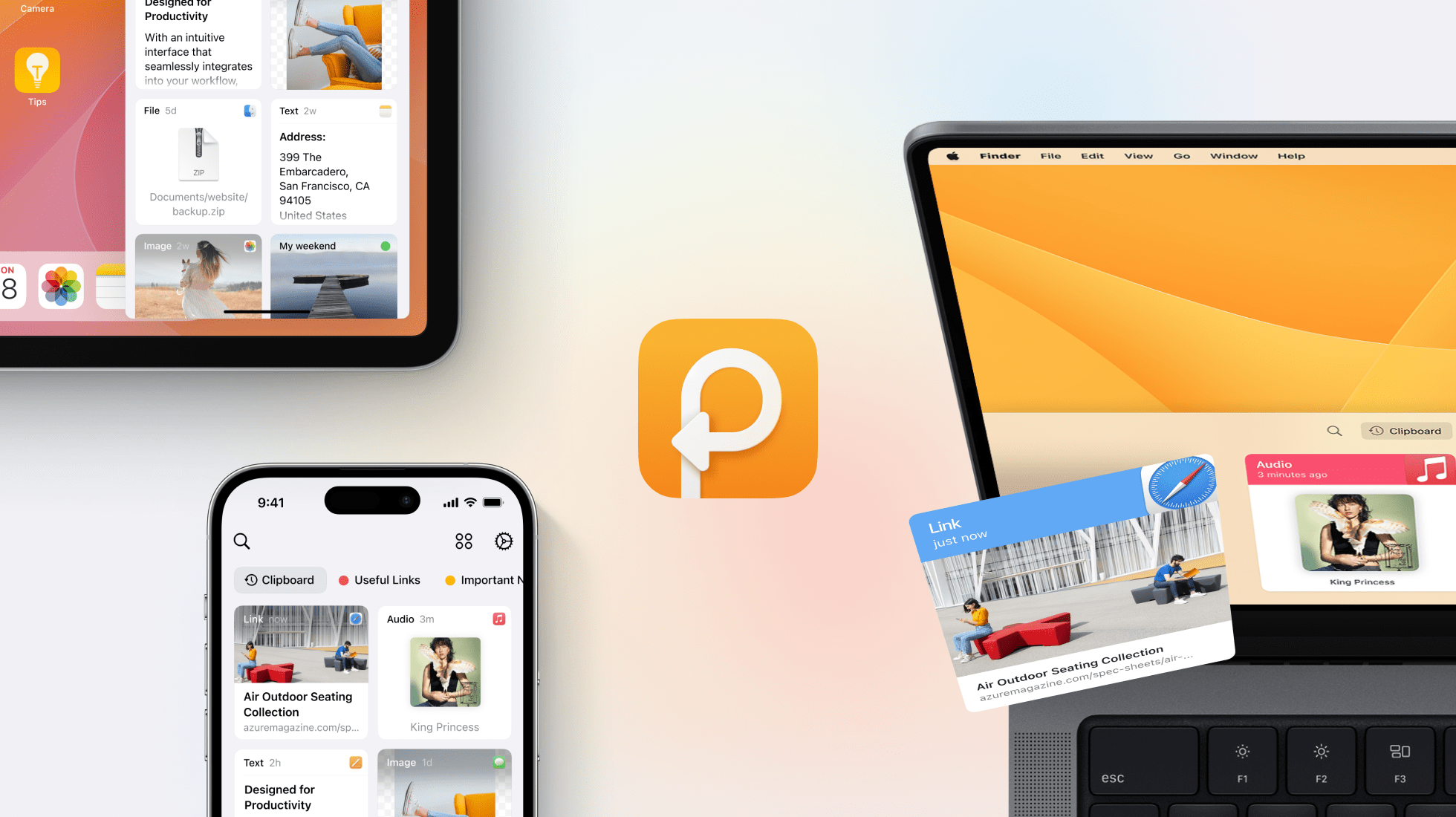
In the dynamic digital world, efficiency is key. That’s where Paste steps in - your indispensable clipboard manager for Mac and iOS. Designed for the Apple enthusiast, Paste elevates your workflow to new heights of organization and ease.
With Paste, every copied item - whether text, image, or link - is intuitively stored across your Apple devices. This ensures that your clipboard history is always at your fingertips, whether you’re working on your Mac, iPhone, or iPad.
Paste is more than just a clipboard manager; it’s a time machine for your digital life. Intelligent search allows you to swiftly find anything you’ve previously copied on any of your devices and customizable rules give you full control over your data privacy, letting you decide what gets stored and what doesn’t.
Designed to integrate seamlessly into your workflow, Paste offers large, easy-to-read content previews for quick retrieval. You can edit your clipboard contents before using them in other applications, keeping your most frequently used items just a click away.
Using Paste daily unlocks even more potential. Become a Pro user and enhance your efficiency by integrating Paste with Siri Shortcuts, stripping formatting with PlainText, and leveraging an extensive range of shortcuts.
Discover why Paste is a game-changer for productivity. Try it now for free on the Apple App Store and transform the way you manage your digital life.
Our thanks to Paste for sponsoring MacStories this week.
 Previously, On MacStories
Stories Vision Pro App Spotlight: HomeUI Enables Spatial Control over HomeKit Lights, Switches, and Outlets Welcome to Weird It’s Time for Apple to Get Weird Vision Pro App Spotlight: My Favorite Ways to Take a Quick Note Apple Spotlights 12 Spatial Computing Games Available on the Vision Pro along with More Than 250 Other Games...
The Latest Club MacStories+ and Club Premier Deals
Over the past week or so, we’ve announced three new deals that we wanted to recap in case anyone missed the announcements. First of all, we’re in the process of expanding the Club Discounts page to add more iOS and iPadOS apps now that Apple makes it much easier for App Store developers to create...
In This Issue
Federico shares Shortcuts techniques to find projects and headings in Things, John explains how he uses two tools for proofreading, Niléane has a new 11-inch iPad Pro setup, Jonathan shares shortcuts for setting your Slack status, plus the usual Links, App Debuts, the latest happenings in the Club MacStories+ Discord community, a recap of MacStories...
Up Next on MacStories’ Podcasts
Next week on AppStories, Federico and John move on from the Apple Vision Pro’s hardware to talk about visionOS, what works, what doesn’t, and where they’d like to see it head next. Next week onMagic Rays of Light, Sigmund and Devon highlight new Apple Original space adventure series Constellation, recap Criminal Record, and preview...
Are You Worse at Security Than the TSA? [Sponsored]

You know the drill: when you go through airport security there are two lines. In one, a TSA agent makes sure you’re the person in your passport photo. In the other, a machine scans your carry-on for explosives, weapons, or a normal-sized bottle of shampoo.
Enterprise security is much the same, but instead of passengers and luggage, we’re talking about end users and their devices. In the first line, user authentication verifies a user’s identity, and it’s gotten pretty sophisticated in the past few years, with SSO and MFA becoming more common.
But user devices don’t get nearly the same level of attention. The average device trust solution only looks at a handful of endpoint security factors, like OS updates and firewall. If this really were the TSA, that wouldn’t even be an x-ray machine, more like holding a bag to your ear and listening for a ticking sound.
And that’s assuming an organization looks at end user devices at all. Kolide’s Shadow IT report found that 47% of companies let unmanaged devices access their resources, and authenticate via credentials alone.
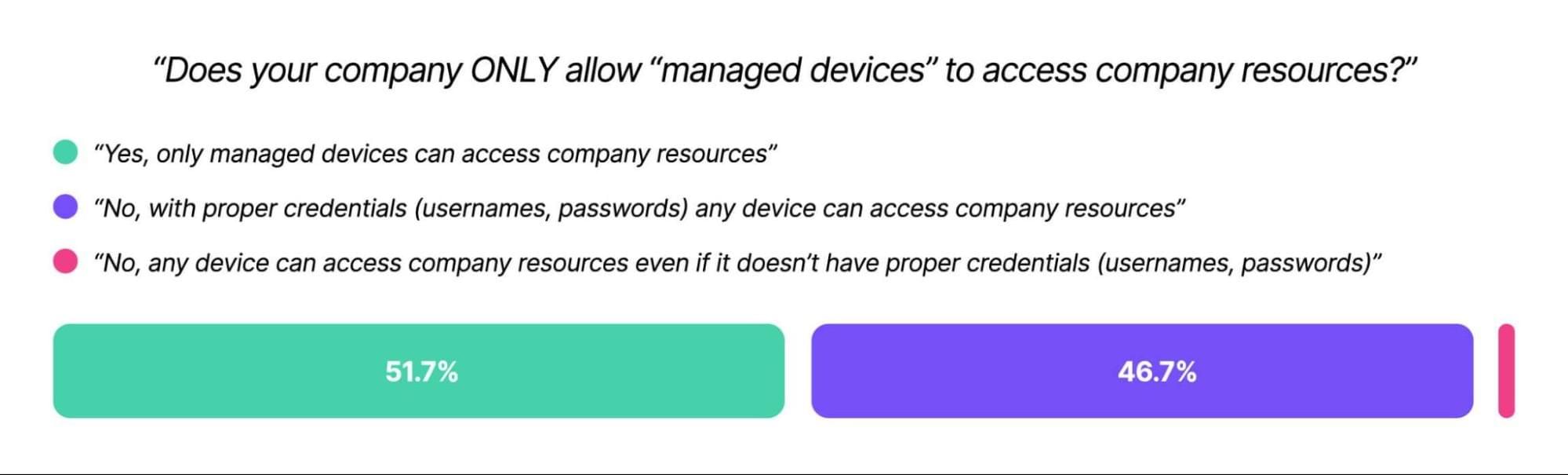
Unmanaged devices (those outside a company’s MDM) can be infected with malware, full of PII, or worse–they can belong to a bad actor using phished employee credentials.
And hey, there are valid reasons for a device not to be enrolled in MDM. Contractor devices, Linux machines, and employee phones all need to be able to access company resources. But there’s plenty of room for middle ground between “fully locked down and managed” and an open-door device policy.
Specifically, companies need device trust solutions that block devices from authenticating if they don’t meet minimum security requirements.
Even with phishing-resistant MFA, it’s frighteningly easy for bad actors to impersonate end users–in the case of the MGM hack, all it took was a call to the help desk. What could have prevented that attack (and so many others) was an unspoofable form of authentication for the device itself.
That’s what you get with Kolide’s device trust solution: a chance to verify that a device is both known and secure before it authenticates. Kolide’s agent looks at hundreds of device properties (remember, our competitors only look at a handful). What’s more, our user-first, privacy-respecting approach means you can put it on machines outside MDM: contractor devices, mobile phones, and even Linux machines.
Without a device trust solution, all the security in the world is just security theater. But Kolide can help close the gaps. (And we won’t even make you take off your shoes.)
To learn more, please watch our on-demand demo.
Our thanks to Kolide for sponsoring MacStories this week.
In This Issue
Federico reports on issues he’s had in his early testing of Shortcuts on the Apple Vision Pro, Jonathan explores Apple’s photo editing AI research, Club members share their Vision Pro experiences, John wonders what if the iPad had the kind of Mac integration the Vision Pro does, plus the usual Links, App Debuts, the latest...