One of the things I immediately missed when I moved to Mastodon was the ability to schedule posts. This isn’t something I do a lot. However, with a busy editorial calendar at MacStories, I’ve used a variety of services over the years, including Buffer, to allow me to set up draft posts in advance when we’ve got a big story or episode of AppStories coming up. Losing that convenience wasn’t the end of the world, but it introduced friction I hadn’t had to deal with in years.
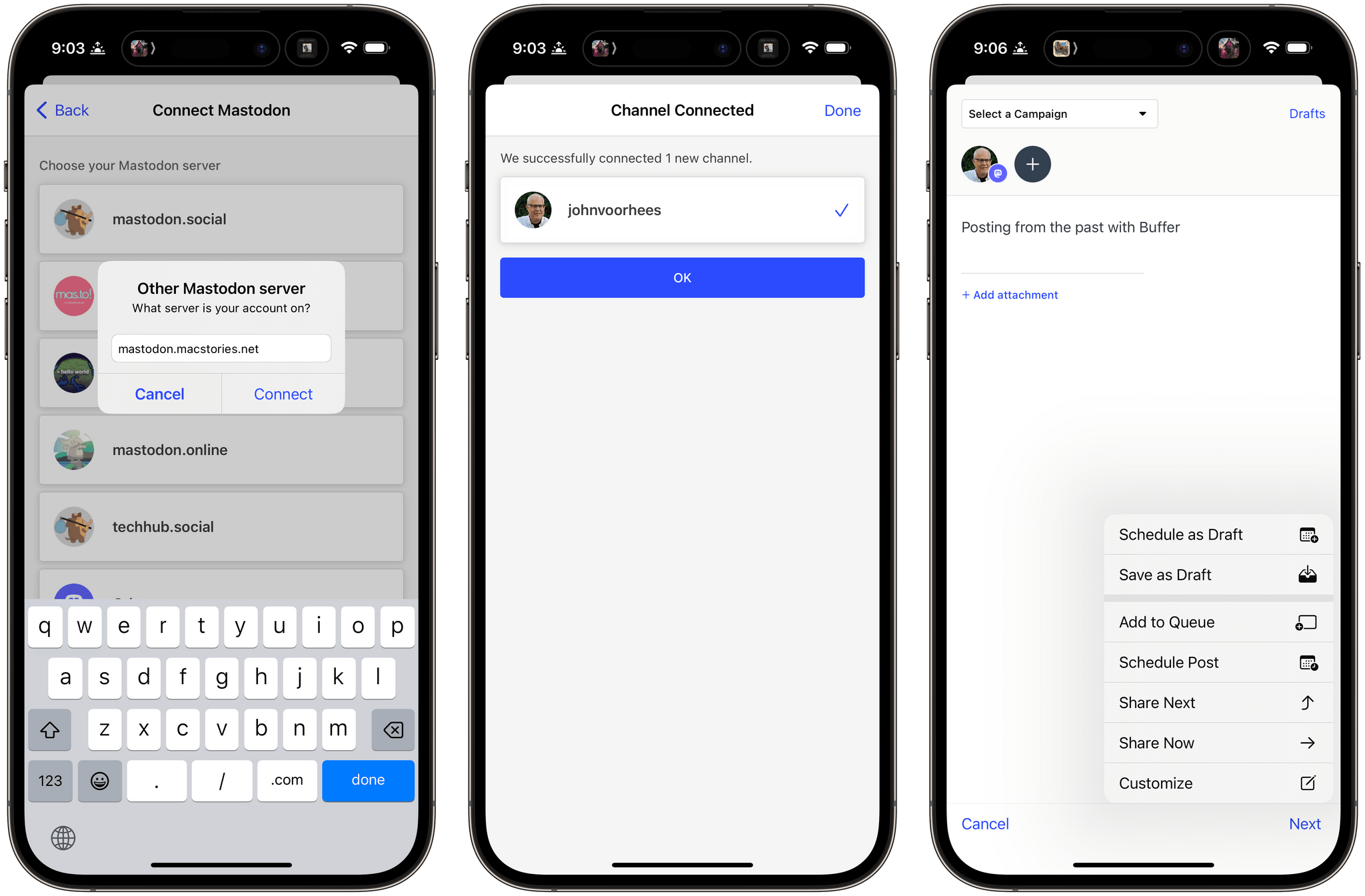
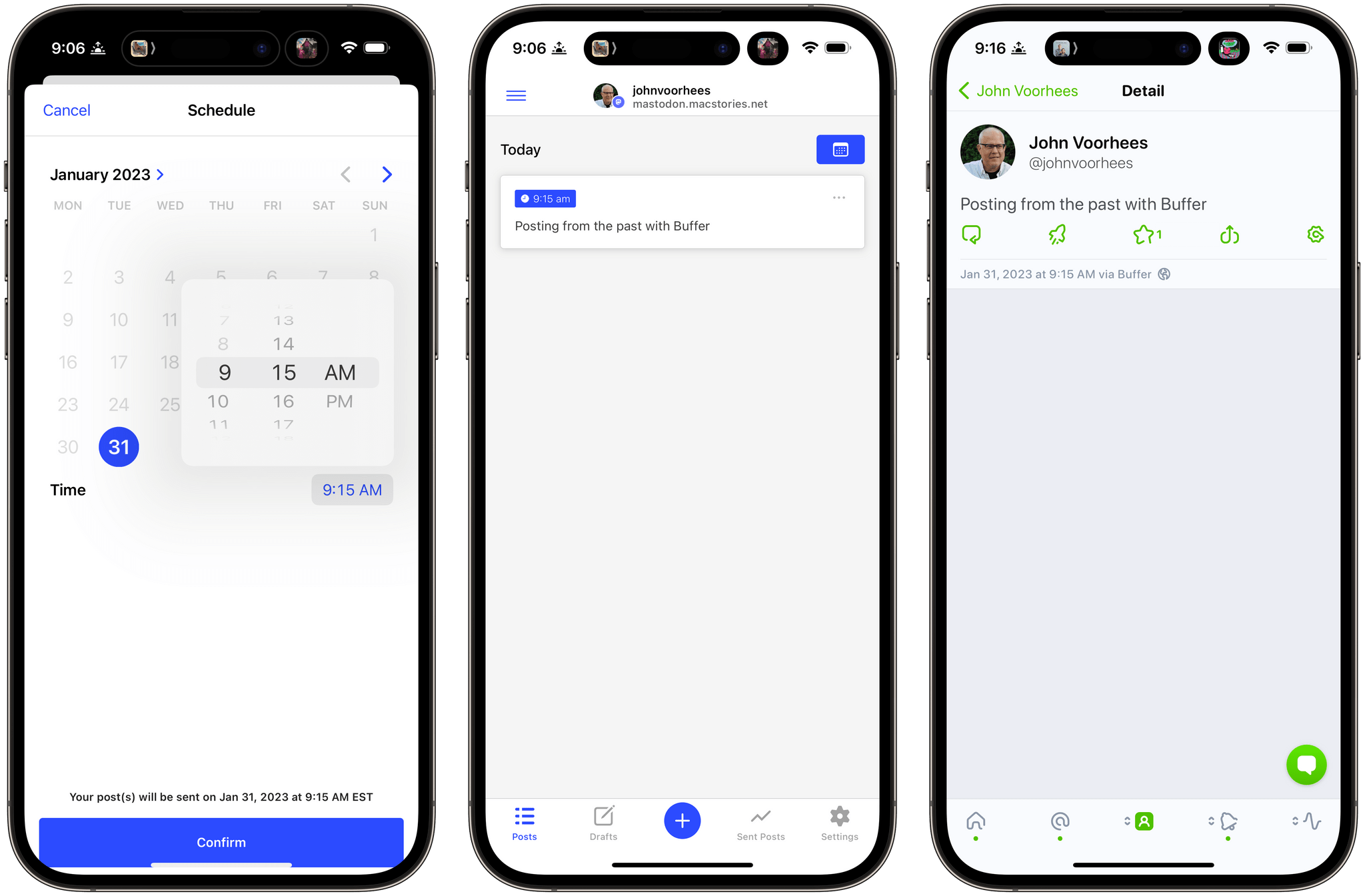
That’s why I’m glad to see Buffer has added Mastodon support to its web and iOS apps today. I’ve been testing Buffer’s beta for the past day, and the best part of the update is that there’s not much to say about it because it’s so easy to use. If you’ve used Buffer before, the process is similar to any other scheduled post you’d create: draft the post, add any media and hashtags you want, and then schedule it. If you want, you can also use Buffer to cross-post to other services.
Scheduling a Mastodon post with Buffer.
Managing posts for multiple accounts has always been the sort of thing that can disrupt my other work. It’s too easy for me to get distracted and wind up browsing my timeline after I post something from one of our company accounts. With Buffer’s new Mastodon integration, I’m looking forward to creating those posts as part of our production workflow and avoiding getting sucked into my timeline when I have more pressing tasks.
SaneBox is the all-in-one solution to email overload, so you can spend less time managing email and more time on what matters. It works with any email client or service, and any device - literally anywhere you check your email. Oh, and there’s nothing to download or install. It just works.
SaneBox is like having a personal email assistant that automatically organizes your inbox, so you don’t have to, saving valuable time. SaneBox works in the background, so your most important messages always reach your inbox. The rest of your messages are carefully organized into designated folders like SaneLater and SaneNews for later. You can snooze emails, too, setting them aside to deal with when you have the time.
Better yet, if there’s something you never want to see again, drag in into the SaneBlackHole folder. It’s far easier than the hit or miss process of unsubscribing from email lists.
SaneBox has a built-in reminders system too. SaneReminders are a terrific way to stay on task. Send yourself a reminder to do something later, or get a reminder when someone hasn’t responded to one of your messages. SaneReminders is perfect for making sure that nothing falls through the cracks.
Also, because SaneBox works with your existing email setup, there’s no app to download or new email account to set up. You can use any email service and client you want.
Sign up today and save $25 on any subscription. You’ll see big benefits immediately as the message count in your inbox drops, and you’ll be able to maintain control going forward with SaneBox’s help.
Our thanks to SaneBox for sponsoring MacStories this week.
This week on MacStories Unwind, John takes listeners to the coast of Ireland for The Banshees of Inisherin, and Federico adds some song and dance to everyone’s day with Matilda the Musical.
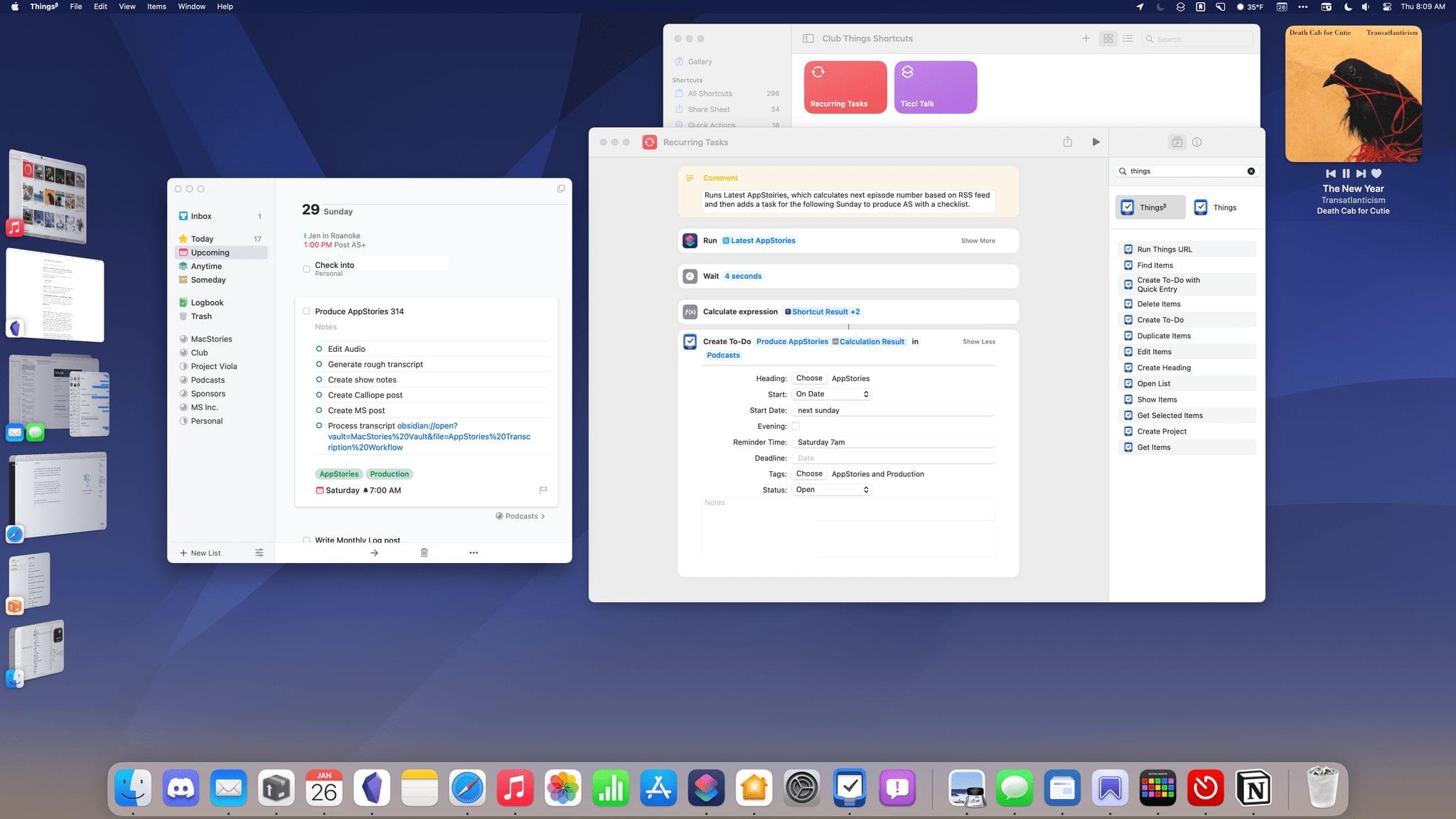
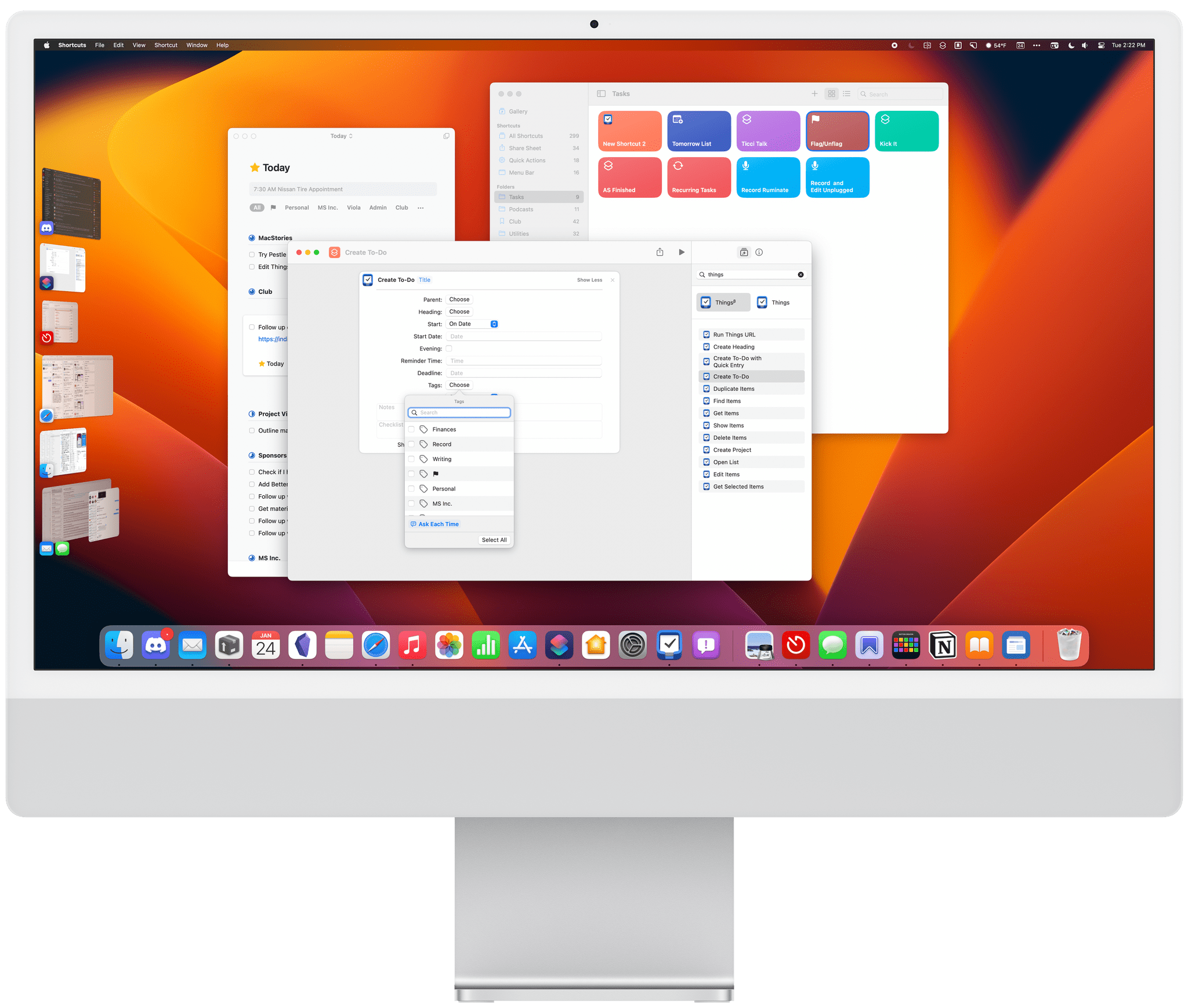
Things 3.17 is out for iPhone, iPad, and Mac with greatly expanded support for Shortcuts. That opens up a much wider variety of possible automations than ever before. It’s a lot to take in at once, but I’ve been playing with these actions since the end of last year, so I thought I’d highlight what each does and share a few shortcuts that I’ve built with them.
At the highest level, these are the kind of Shortcuts actions I like best. They work across all of Apple’s platforms and include parameters and predicate filtering, which allow users to build fine-tuned shortcuts that either weren’t possible before those features were added to Shortcuts or would have required users to jump through many more hoops to achieve.
When you start exploring Things’ Shortcuts actions keep in mind that they operate on more than just tasks. When you see ‘items’ referred to in the actions, that could any of the primary components of the app, including projects, headings, tasks, areas, or checklists. Not all actions support all item types, and each item has a unique set of properties that can be accessed depending on the action, so it’s worth experimenting to understand everything that can be accomplished.
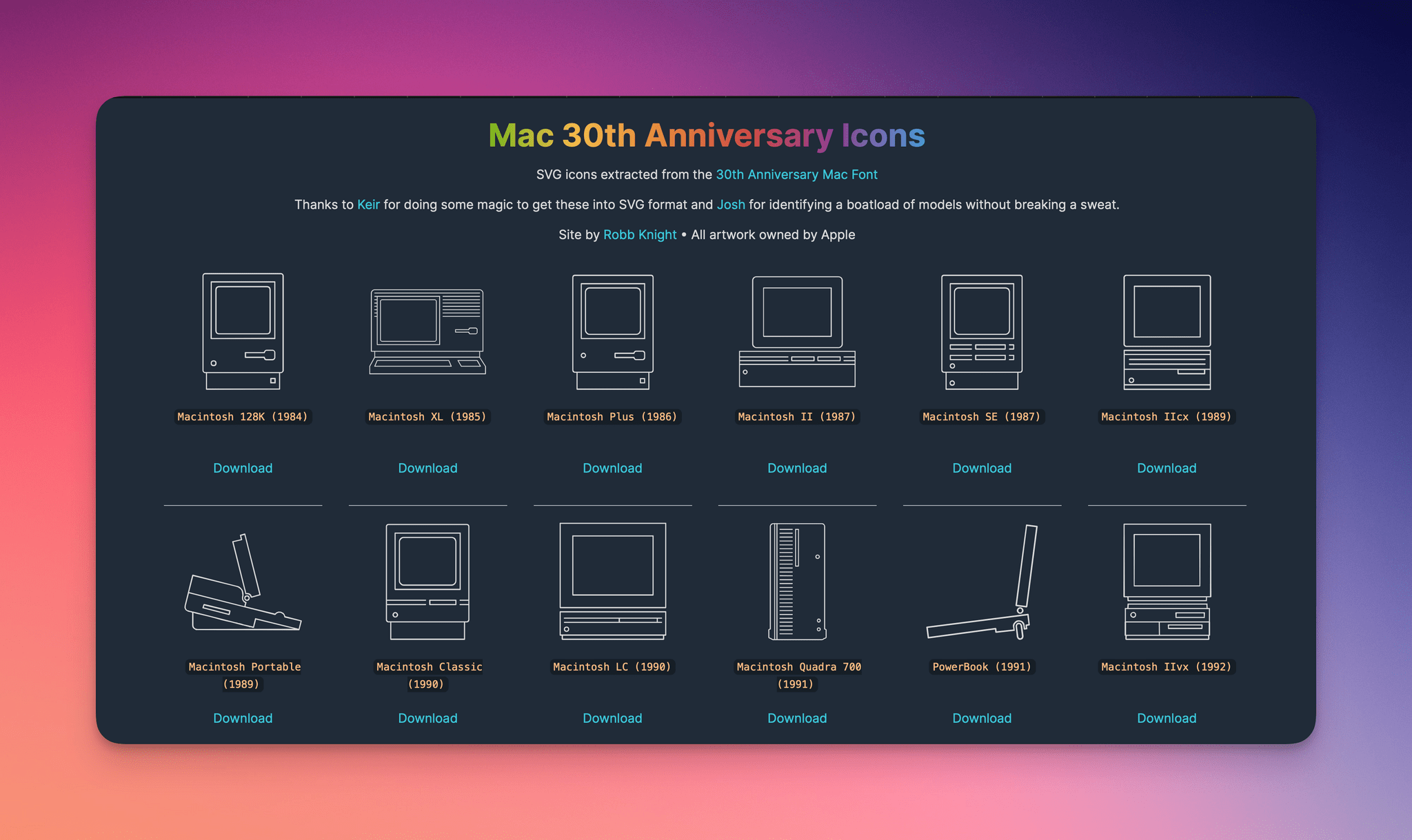
In 2014, for the 30th anniversary of the Mac, Apple celebrated with a mini site featuring the stories of the people behind the computer and its users. As part of that event, Apple created a special font of line-drawn versions of every Mac from its introduction on January 24, 1984 through 2014.








](https://cdn.macstories.net/banneras-1629219199428.png)