Posts in reviews

Festivitas Brings Fresh Whimsy to Your Mac, iPhone, and iPad for the Holiday Season

Last year, Simon Støvring released Festivitas, a Mac app that lets you string holiday lights from your menu bar and across the top of your Dock. This year, Simon is back with an update to the Mac app and a new version for the iPhone and iPad.

The default set of lights consists of traditional multi-colored bulbs that blink on and off as you use your Mac. That’s the set I use the most, but Festivitas offers many more options. You can control the lights’ opacity, whether they appear along both the menu bar and the Dock or just one of them, and the colors of the lights and the cable from which they hang. You also have more than a dozen light styles to choose from, including round holiday lights, bats, clovers, eggs, stars, hearts, snowflakes, cocktail glasses, beer mugs, “2026,” “WWDC,” and more, covering a wide variety of holidays and festive events. Plus, you can control how the lights blink. It’s a lot, but it’s also just plain fun to tweak everything to suit your tastes.

This year, the Mac app adds a virtual snowstorm that you can start from the app’s settings or menu bar item. It’s a great addition that looks amazing against a dark backdrop like the Obsidian theme I often use to write. A fun touch is that the snowflakes avoid your pointer, and you can adjust the sensitivity of this feature in settings. You can also use your pointer to push around the lights hanging from the menu bar, which is handy for those times when they obscure Safari’s menu bar or other content.

The snow is lovely. I highly recommend pairing it with the Animal Crossing Snowy Day soundtrack on Nintendo Music. It’s an incredibly peaceful and relaxing combination.

Festivitas supports Shortcuts, too. Simon has created some fun example automations that you’ll find in the app’s settings to do things like turning on the snowstorm when snow is forecast and activating your lights when you play music.

Festivitas on iPhone.

Festivitas on iPhone.

New this year is a Festivitas app for the iPhone and iPad. The app lets you build small, medium, and large widgets to place on your Home Screen. You can either frame a photo with twinkling lights or create a transparent-style widget so the lights frame an element of your Home Screen. I love that the lights framing the photos are animated, an effect I know isn’t easy to do with a widget. You can also add text and make other adjustments to each widget.


Festivitas isn’t going to help you get more done. In fact, it might even slow you down a little bit, and maybe that’s the point. Taking a moment to enjoy the app’s lights and be mesmerized by the falling snow is a good reminder to slow down a little and have some fun.

Festivitas for the Mac is available directly from the app’s website for any price you want to name between $3.99 and $9.99. The iPhone and iPad version is a free download on the App Store with a range of in-app purchases from $3.99 to $9.99 to create a similar name-your-price system.


Picmal Streamlines Batch Conversion and Compression on the Mac

One of my favorite aspects of macOS is the endless supply of great utilities for doing anything you can imagine. If there’s something you want to do on your Mac, the chances are that there isn’t just one good utility to accomplish your task; there are several.

My latest discovery is a file conversion and compression app called Picmal. The app has a wonderfully simple, modern interface that sits on top of a lot of complexity, enabling batch conversion and compression with minimal effort.

You can mix and match file types in one conversion or compression operation.

You can mix and match file types in one conversion or compression operation.

Picmal handles images, videos, and audio files in a single-window utility that features a Convert/Compress toggle at the top and a lot of empty space to start. The center of the window invites users to “Drop Your Files Here.” Once you do, the window animates into something a little closer to a Finder window with alternating white and light gray rows that make it simple to track metadata about each file.

Files can be dragged into Picmal from anywhere on your Mac, allowing for batch processing without moving your files to one location first, which I appreciate. Once converted, files are saved as new files in the folder they came from with a prefix or suffix that you can specify in the app’s Settings. You’re not limited by file type either. You can drag any combination of images, videos, and audio files into Picmal’s window, picking and choosing what to convert them into as you go.

For some file types, Picmal includes metadata.

For some file types, Picmal includes metadata.

Next to some file types is a small info button that reports the sort of basic file metadata you find in the Finder’s info panel. That’s followed by a column that lists the file’s starting type, and a column with a dropdown menu for picking the destination file type. The list of supported file types is long, too, with the exact number of options dependent on the type you begin with.

If you want to check the file you’re about to convert before doing so, there’s also an arrow button on the far right of each file’s row that will take you to it in the Finder. The other columns report the output file’s size, any compression savings, and the status of each conversion. Whenever you want, you can add more files for conversion, kicking off a new batch once any ongoing conversions complete.

Most file conversions I tried went well, but I couldn't manage to convert large MP4s to the MOV format.

Most file conversions I tried went well, but I couldn’t manage to convert large MP4s to the MOV format.

In my testing, Picmal performed well overall. I converted images, audio, and videos to and from a variety of common formats such as PNG, JPEG, PDF, MP3, AAC, WAV, MP4, and MOV. However, I did run into trouble trying to convert a 1.55 GB MP4 of an episode of MacStories Unwind from MP4 to MOV. The conversion failed, even though much smaller files worked. Hopefully this is something that can be fixed in an upcoming update.

Another smaller issue I ran into is that there’s a checkbox next to each file in the Picmal file conversion interface that appears to be intended as a way to change the conversion file type for multiple files at once. However, the dropdown that appears when selecting multiple files of the same type didn’t give me an option to pick a new conversion type. The developer is aware of this and the large video file issue and is working to resolve both.

The other primary use for Picmal is file compression. The workflow is largely the same as converting files, with the size savings reported in a dedicated window column. By default, compressing files requires you to click on Picmal’s Compress button, but you can change the process so that it happens automatically instead. From Settings, you can also add compression to your file conversions, completing both steps together.

Compressing images.

Compressing images.

Audio and video compression quality are set to 85% by default, while image compression quality is set to ‘balanced.’ However, in each case, you can tweak the compression settings with more fine-grained controls. Another nice touch is that your compression selections and a link to Picmal’s Settings are both accessible from the bottom of the Picmal window, making your compression choices clear and simplifying the process of making any adjustments.


Aside from a couple of hiccups in my testing that the developer will likely have fixed soon, my experience with Picmal has been great. About the only thing I’d love to see added is support for Shortcuts. Otherwise, Picmal is an excellent way to manage file conversion and compression jobs of any size. There are other apps that accomplish something similar, but the simplicity and speed with which you can manage batch conversion and compression with Picmal sets it apart and makes it worth checking out.

Picmal is available directly from its developer for $9.99. That gets you the use of the app on one Mac at a time, which can be expanded to more Macs at an increasing per-Mac discount based on the number of licenses you purchase.


More Than Just a Camera Grip: Belkin’s Stage PowerGrip for iPhone

For the past week, I’ve been testing the Belkin Stage PowerGrip. It’s an iPhone accessory that adds a DSLR-like grip to your iPhone while simultaneously charging it. Belkin isn’t the first company to make an accessory like this, but the Stage PowerGrip delivers a bigger battery at a more affordable price than its competitors. That’s why it initially caught my eye. However, what I didn’t expect was for the device to make a compelling case to become part of my everyday on-the-go setup, which it absolutely has. Here’s why.

Read more


Remess Visualizes Your Life in Texts

Text messages are a chronicle of our lives. But by the same token, those conversations remain locked away in Messages. The app’s search has improved with macOS Tahoe, which I appreciate, but finding past snippets of a chat log doesn’t allow you to understand the full arc of conversations across your entire family and friend group.

That’s where Remess by Fahmi Omer comes in. It’s a Mac app that accesses your Messages and Contacts databases locally to paint a picture of your life in text messages.

To run Remess, which is an open source project that you can inspect on GitHub, you need to run a Terminal command that bypasses Apple’s Gatekeeper protection and give it both full disk access and access to your contacts. The developer says the app only accesses your information locally, but there’s an element of trust there that’s worth considering before you take the plunge. That said, if you go for it like I did, Remess is a lot of fun.

Let’s take a look.

The app starts out very high level with the total number of messages sent and received:

Then, it digs into the details. This is what writing at MacStories for nearly a decade looks like:

From all-time numbers, Remess digs into what a typical day of texting looks like for you:

The app also calculates the year you sent the most messages and how many people you’ve exchanged texts. After this brief tour of your life in texts, Remess lands on a dashboard with additional data, a graph of your texting totals, a word cloud of most frequently-used words, and a ranking of your contacts and groups ranked by texting totals.

You can filter texting totals by year, too, which is an interesting way to spot patterns in your messaging habits.

The word cloud should probably filter out common words, but the rest is about what you'd expect from me: Mac, app, shortcuts.

The word cloud should probably filter out common words, but the rest is about what you’d expect from me: Mac, app, shortcuts.

I’m not sure I learned anything about my texting habits from Remess that I didn’t already have a sense of based on my day-to-day messaging. Still, it’s interesting and fun to see the magnitude of the number of texts and the way they’ve accumulated over time.

Remess is available as a free download directly from its developer.


Hands-On with the Kuxiu X40 Turbo Qi 2.2 3-in-1 Travel Charger

Wireless charging is great, but historically it’s been slow. That’s starting to change for the iPhone with Qi 2.2, the latest wireless charging standard that the iPhone 16 and 17 series phones support. With Qi 2.2, a compatible iPhone charges wirelessly at 25W. By comparison Qi 1 charged at 5–7.5W and Qi 2.0 and the original MagSafe charged at 15W.

So far, though, there have been precious few chargers, besides Apple’s MagSafe puck charger, that support Qi 2.2’s faster charging, which is why I was interested in trying the Kuxiu X40 Turbo, when Kuxiu offered to send me a review unit. As advertised, the compact 3-in-1 charger delivers the fastest wireless iPhone charging around, but that’s not its only selling point.

In addition to fast charging an iPhone 16 or 17 series phone at 25W, the X40 Turbo, which retails for around $80, charges AirPods and an Apple Watch at 5W. However, what I wasn’t expecting was just how small the X40 Turbo is when folded for travel. The entire package is about twice as thick as an iPhone 17 Pro Max and fits neatly into the palm of your hand. At the same time, though, the X40 Turbo feels sturdy. It’s made of metal with soft-touch pads to avoid scratching your devices or tabletop. Here’s a closer look at what Kuxiu sent me:

When it’s time to charge your iPhone, AirPods, and Apple Watch, the X40 Turbo unfolds into a z-shaped configuration from which the Watch pad flips down horizontally. So far, I’ve used the X40 Turbo on my nightstand and at my desk, where it takes up minimal space. I also plan to take the X40 Turbo on my next trip because it takes so little room in my bag.

Kuxiu isn’t the first company to make a charger in this form factor, but the X40 Turbo is one of the best built that I’ve tried, and as one of the first Qi 2.2 models, it’s notable, and a great upgrade to your charging setup.

The Kuxiu X40 Turbo is available directly from Kuxiu and Amazon.


A Fresh Spin on Apple Music: Exploring Daft Music’s Liquid Glass Design

Daft Music asks a question that’s been on my mind for a long while: what if Apple Music started over with a new Mac app? As a service, I love Apple Music. I’ve been a subscriber since day one. But I’m less enamored with the Music app, especially on the Mac.

Music on the Mac has a long history dating back nearly 25 years to Apple’s acquisition of SoundJam MP, which became iTunes, an app for organizing your music collection, syncing it to your iPod, and, later, buying music. Over the years, iTunes expanded to encompass TV, movies, books, apps, and even courses, which was too much for one app. So Apple began dismantling iTunes, with the final blow coming in 2019 with the release of macOS Catalina. The update retired iTunes, replacing it with Apple Music and dedicated apps for other types of media.

Music was a significant break from the design of iTunes, but as a long-time user of both iTunes and Music, what didn’t seem to change as much was the app’s underlying code. That’s consistent with reporting at the time that Music was an AppKit app built on the bones of iTunes. The choice to build Music for macOS on top of the iTunes foundation had the advantage of allowing Apple to preserve iTunes features that the Music app lacked on other platforms. However, the decision had a big downside, too. Built on what was already a nearly 20-year-old code base, Music inherited iTunes’ bugs, which have hung around unfixed for years.

I love the simple elegance of Daft Music’s interface.

I love the simple elegance of Daft Music’s interface.

That’s where Daft Music by Dennis Oberhoff comes in. It’s a simple, elegant Apple Music “do-over” that also happens to be the first Mac app I’ve tried that was built from the ground up for Liquid Glass. There’s a lot to cover, so let’s dig in.

Read more


First Look: Logitech’s MX Master 4 Adds Haptics, Actions Ring, and a USB-C Bolt Receiver

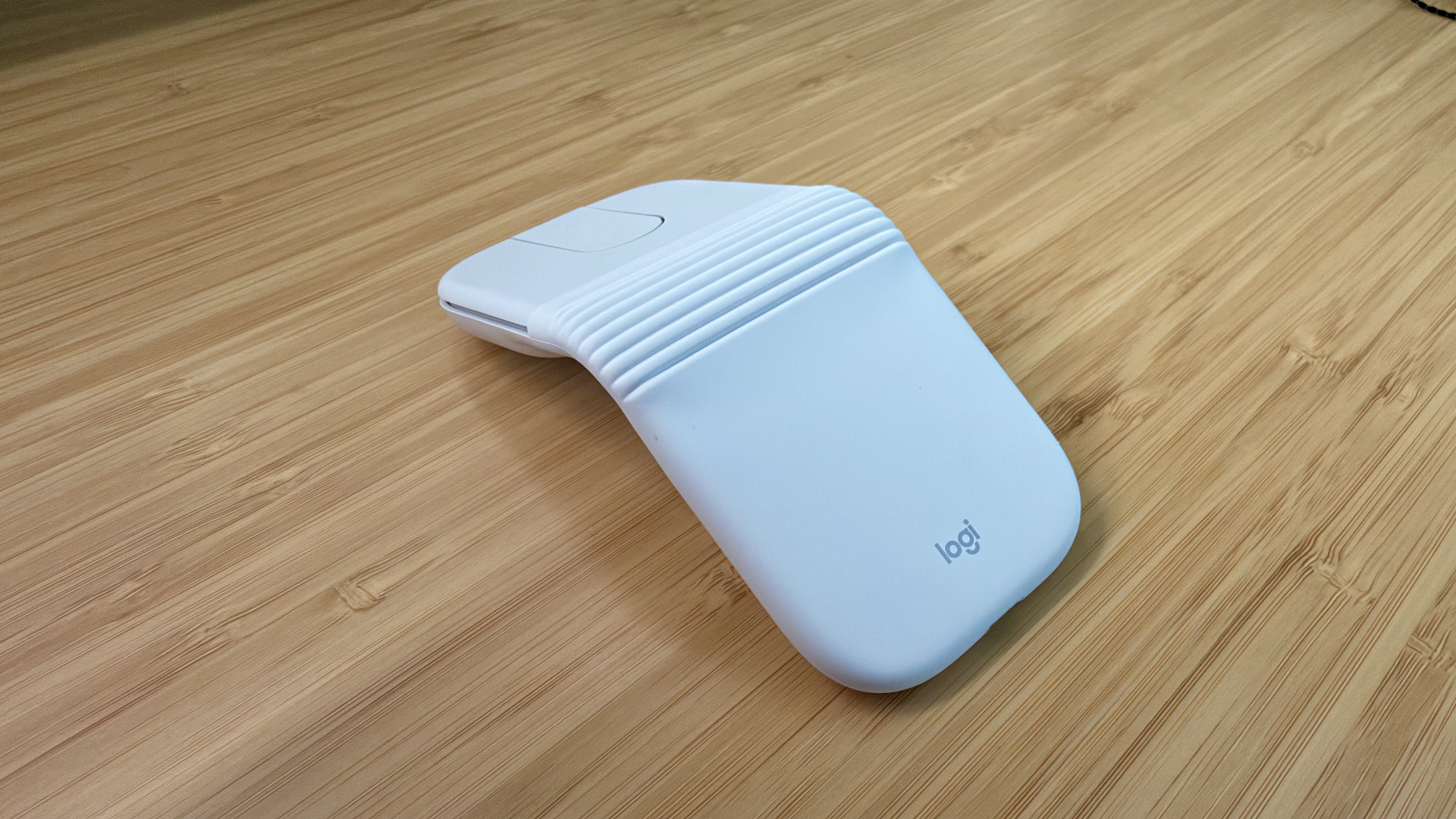
Source: Logitech.

Source: Logitech.

Today, Logitech introduced an updated version of its MX Master series mouse dubbed the MX Master 4. It’s a good upgrade, but the changes are largely incremental; while I like it a lot, the MX Master 4 won’t be for everyone. Logitech sent me the MX Master 4 to try, and I’ve been using it for the past couple of weeks, so I thought I would share what the experience has been like so far.

Read more


Tot 2.0: A Thoughtful Extension of an Already Elegant Note-Taking App

Late yesterday, The Iconfactory released 2.0 updates to Tot for macOS, Tot Pocket for iOS and iPadOS, and Tot Mini for watchOS. The apps, which The Iconfactory describes as tiny text companions, include a handful of big new features that span all three versions, along with other updates and fixes that are unique to each platform.

What hasn’t changed is Tot’s incredible design and reliable performance across all platforms. The app showcases some of The Iconfactory’s best app design work, which Federico described in his review of version 1.0:

Tot’s colored dots serve the dual purpose of being spatial navigation tool and context indicators. You can navigate across documents in the app with a quick swipe, and in doing so on modern iPhones you’ll feel a delightful haptic tap; alternatively, you can tap the dots to switch documents. As I mentioned above, each dot carries a color, which becomes the background color of the selected document (vibrancy is also used to let the color shine through the software keyboard – a nice touch). The palette chosen by The Iconfactory for Tot’s seven documents is some of the finest selection of colors I’ve seen in a modern iOS app: it looks great in light mode, and it looks amazing in dark mode thanks to its combination of high contrast and translucency.

The combination of that elegant design with reliable sync across multiple OSes and thoughtful Shortcuts integration has understandably made the Tot family of apps integral to a lot of MacStories readers’ workflows. However, if you haven’t tried any of the Tot apps before, it’s worth checking out Federico’s review of version 1.0 for the fundamentals because they haven’t changed, and I’ll be focusing on what’s new.

My favorite 2.0 feature is that Tot now supports automatic indenting. If you indent a line using the Tab key, the next line will begin at the same indentation level when you hit Return. That makes creating hierarchical lists a lot faster than before. My only quibble with the feature is that if you’re making a bulleted list, to indent a line, you can’t indent using just the Tab key if the cursor appears anywhere in your line of text. However, you can use ⌘ + ] and ⌘ + ] to do the same thing. Regardless of how indenting is invoked, it’s an excellent addition to Tot that I was glad to see included in the update.

Tot allows you to define pairs of smart bullets.

Tot allows you to define pairs of smart bullets.

Speaking of bullets, Tot 2.0 also supports customizable smart bullets. From the app’s settings, you can choose from different pairs of symbols and emoji, like empty and filled circles or empty and filled stars. To toggle between the symbols in each pair, all you need to do is click or tap on them. If the eight default pairs aren’t to your taste, there are a bunch of alternatives you can use instead, such as the snowflake and flame emoji. It’s a clever twist on standard checkboxes and radio buttons that I’ve enjoyed because it adds some character and color to the app.

Tot adds eight new text dividers, too. From the classic three dashes used in Markdown to asterisks and more, there’s a nice variety of options. Plus, you can easily insert a divider with the keyboard shortcut Control + Minus.

The Iconfactory has made other platform-specific changes, too:

  • Settings have been redesigned in the Mac version and include new options, such as floating the Tot window over other windows.
  • The iOS and iPadOS versions include a menu button that offers access to the app’s settings along with a couple of bulk operations like saving, sharing, and exporting notes.
  • The watch app’s design has been refreshed with simplified controls and colorful backgrounds.

It’s great to see the Tot apps reach version 2.0. The three tentpole features – automatic indenting, custom smart bullets, and text dividers – are all meaningful improvements that don’t compromise the apps’ simplicity. Those features, along with several quality of life improvements and other bug fixes that you can read about in Tot’s version history, add up to an excellent update that should serve users well for a long time.

Tot is available on the Mac App Store, and Tot Pocket is available on the iOS and iPadOS App Store. Each costs $19.99, though existing users can update to Tot Pocket at no extra cost. Tot Mini, the Apple Watch app, is available as a separate $1.99 purchase.


One Month with the Aqara G410 Video Doorbell

Last month, after an advanced preview at CES back in January, Aqara released an update to its G4 smart video doorbell dubbed the Doorbell Camera Hub G410 Select. I had been keeping my eye out for this release ever since its announcement, and it just so happened to coincide with the passing of my existing smart doorbell from Netatmo. That was more than enough reason to purchase the G410, and over a month of daily usage, I’ve been enjoying several of the camera’s excellent new features while also wishing for some improvements in other areas.

Read more