
Being a blogger, I’m totally into finding new tools that allow me to save time. But who knew that the solution this time lied in Mac OS itself?
Today I’d like to talk about these new “apps” I’ve created thanks to AppleScripts.
Enjoy! ![]()
Dropbox Custom App
The first one is a simple, yet powerful, Dropbox custom application based on AppleScript language.
Basically, it’s an app that sits into your dock waiting for some files to be dragged over. As you’ll drag and drop a file over it, the app will copie it into the Dropbox->Public directory, generate the url and paste it into the clipboard.
This means that if you have to share a large file (let’s assume more than 5 MB) you just have to perform a quick and easy drag & drop and wait for the upload to be complete (a few seconds in my case, but depends on your internet connection).
I call this a “Dropbox launcher”. To create this app, follow these steps:
- Fire up AppleScript Editor, located into /Applications/Utilities;
- Copy this code: (without the quotes)
“on splitText(delimiter, someText)
set prevTIDs to AppleScript’s text item delimiters
set AppleScript’s text item delimiters to delimiter
set output to text items of someText
set AppleScript’s text item delimiters to prevTIDs
return output
end splitText
on open {dropped_item}
set myPath to (path to home folder) as string
set myPath to myPath & “Dropbox:Public:”
tell application “Finder” to duplicate (dropped_item) to folder (myPath as string)
set fileName to item (count splitText(“:”, dropped_item as text)) of splitText(“:”, dropped_item as text)
set filePath to “https://dl.getdropbox.com/u/1083712/” & fileName
tell application “Finder” to set the clipboard to filePath as text
end open”
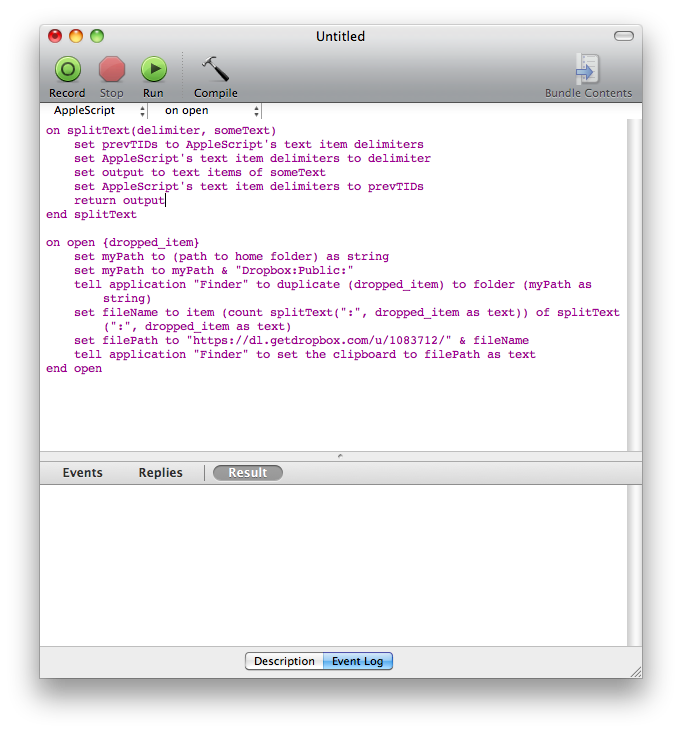
- Replace “https://dl.getdropbox.com/u/1083712/” with your Dropbox public folder url; (Attention! The code assumes you have Dropbox on your Mac installed in its default position)
- Save the script as an Application;
- Place it into your dock and start using it.
That’s it. As you keep using it, you’ll notice that it’s an incredible time saving hack, totally worth messing a little bit with AppleScripts. (thanks to Ben Cardy for the tips)
AppleScripts Launchers
This one is very easy to acheive. With AppleScript, you can tell an application (or a bunch of apps) to activate and – guess what – the language is very simple!
Indeed, with this snippet:
tell application “Mail” to activate
Mail.app will launch (if quit) or go on top if inactive. And please note, this method works with every app. So, you can create an application which – with one click – will open as many other apps you wish and then will close again.
See my screenshot:
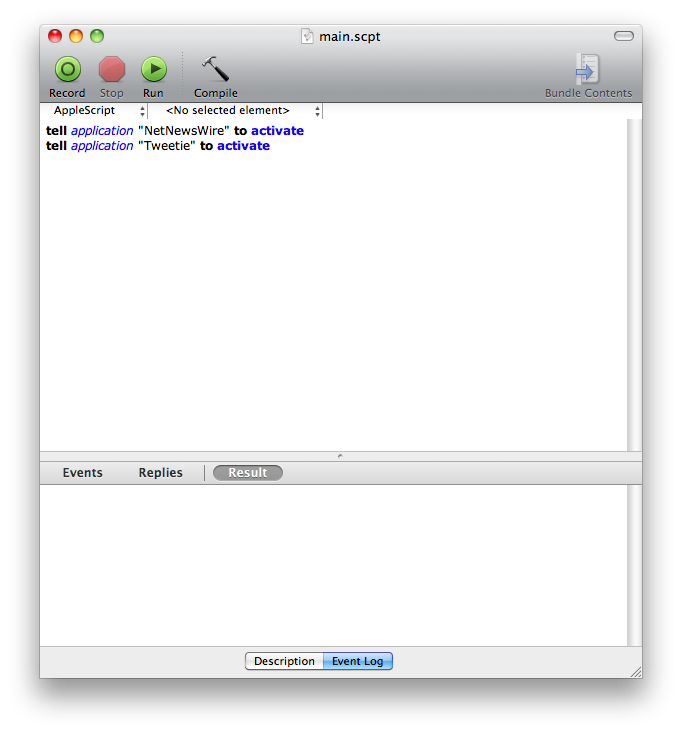
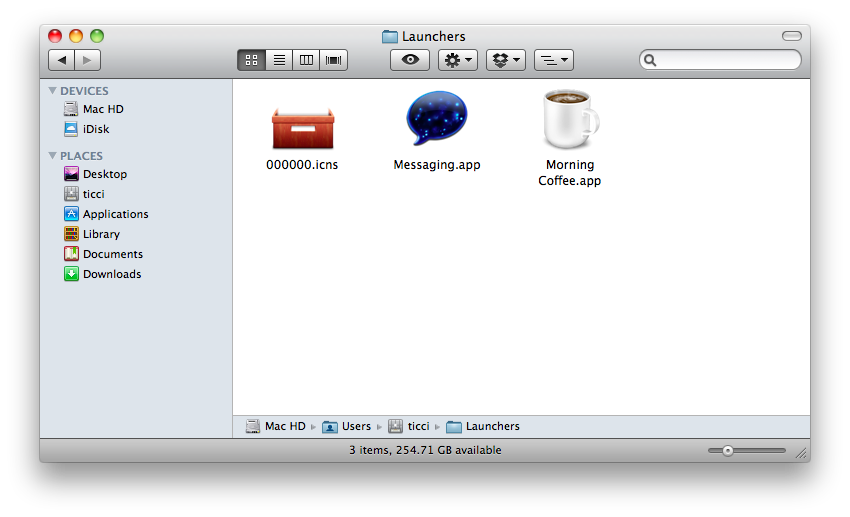
I’ve built a simple launcher called “Morning Coffee” which opens NetNewsWire and Tweetie, the apps I launch each morning after I wake up. To create the app, you just have to save the script as “application” as you did before with the Dropbox custom app.
Obviously, you can add a custom icon manually or with 3rd party apps like Candybar.
And you? Have you found out other ways to speed up your workflow with AppleScript?


#1
That's what gemmes said 10 months ago:
I created a .scpt file so I could create a FastScripts keyboard shortcut.
tell application "Finder" to open the selection using "Macintosh HD:Users:username:Documents:SendtoDropbox.app"
[Reply]
#2
That's what storiesofmac said 10 months ago:
Thanks for the tip man. But doesn’t FastScripts support keyboard shortcuts by default? Or you mean a shortcut to the application itself?
[Reply]
ootie Reply:
October 21st, 2009
Maybe he meant the whole app, not the scripts.
[Reply]
gemmes Reply:
October 21st, 2009
@storiesofmac, shortcut to SendtoDropbox.app.
I have to drag and drop a file on to the SendtoDropbox.app file for this too work. Using .scpt I just have to select the file and hit shortcut for SendtoDropbox.app to work
[Reply]
#3
That's what ootie said 10 months ago:
Great post, thank you!
[Reply]
#4
That's what Steve said 10 months ago:
It hasn’t worked for me. It won’t compile, it just comes up with the error message: "Expected end of line but unknown token." Any thoughts?
[Reply]
#5
That's what Alessandro Vendruscolo said 10 months ago:
The only missing thing it’s the app icon!
MJ
[Reply]
storiesofmac Reply:
October 22nd, 2009
@Alessandro Vendruscolo, search MacThemes, bish!
[Reply]
#6
That's what Daniele said 10 months ago:
how can I get the dropbox public folder link???
[Reply]
storiesofmac Reply:
October 21st, 2009
@Daniele, carica qualcosa tramite l’interfaccia web, quindi copia il link che ti da. O meglio, copia solo la parte tipo questa: https://dl.getdropbox.com/u/1083712/
[Reply]
#7
That's what Lorenzo said 10 months ago:
I am currently using some scripts allowing me to automatically move files I move to the Desktop (e.g. images, videos…) to their folder. It’s very easy to do ( I can give you the scripts I am using) and also very efficient!!
ah, complimenti per il sito!!
ti ho trovato grazie ad una colonna di ricerca su hootsuite sotto la voce "viterbo"
[Reply]
storiesofmac Reply:
October 23rd, 2009
@Lorenzo, ahahaha, grazie mille!
For the scripts, I would be happy to take a look
[Reply]
Lorenzo Reply:
October 23rd, 2009
@storiesofmac, here’s the link to download the script:
http://mcstr.es/t/w
btw, I have installed vertical tabs on my Safari, but some attachment features appear on the bottom of the page, and I can only see them by resizing the window. Any suggestions?
Complimenti ancora
[Reply]
storiesofmac Reply:
October 23rd, 2009
@Lorenzo, Yeah, that’s kinda annoying. That happens because when you hide the tab bar at the bottom of the page, the browser tries to open attachements below it. And it seems there no solution to that.. besides no attachments at all XD
[Reply]
#8
That's what Mike said 10 months ago:
Hi! Thanks for this great "how to"
(I was using Skitch before but it was too many clicks for me and now I am waiting for my CloudApp invitation)
I used this script to upload screenshot automatically. I am using Hazel to do all the moving part and made this simple rule (with the help from this article and the Save to Dropbox script) http://dl.getdropbox.com/u/1385634/Screen shot 2009-10-26 at 0.16.29.png . Now when I make a screenshot I got it pasted in my clipboard immediately
[Reply]
storiesofmac Reply:
October 26th, 2009
@Mike, thanks for the tip!
[Reply]
Mike Reply:
October 26th, 2009
Link for the screenshot http://dl.getdropbox.com/u/1385634/Screen%20shot%202009-10-26%20at%200.16.29.png
[Reply]